# Managing Complaints
Go to [**Complaints**](https://app.rtosafe.com.au/Complaints) to see all open complaints. Use the **Resolved** tab to view closed complaints.
***
## Complaint Workflow
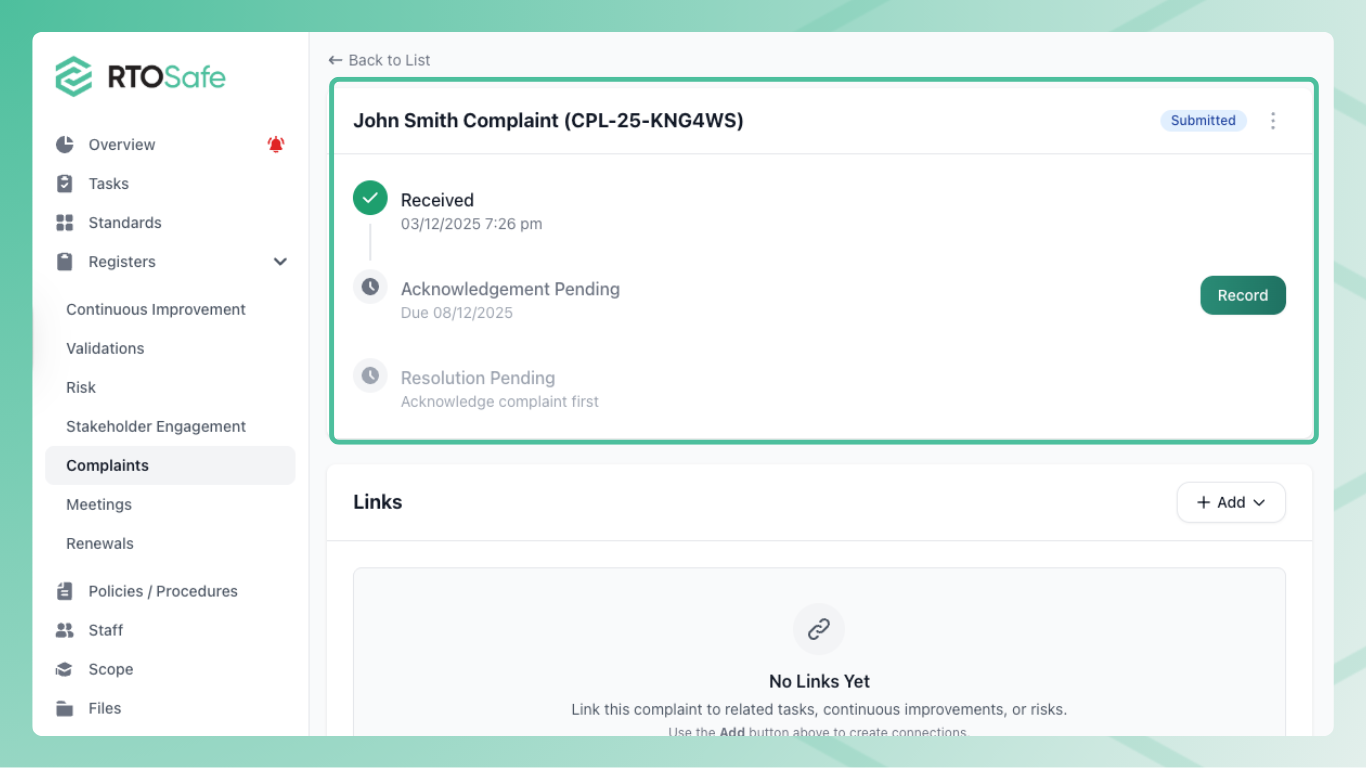
Each complaint moves through three statuses:
1. **Submitted** — Complaint received, awaiting acknowledgement
2. **Under Review** — Acknowledged, being investigated
3. **Resolved** — Resolution recorded, complaint closed
***
## Acknowledging a Complaint
When a complaint comes in, you need to acknowledge it to the complainant within your configured timeframe.
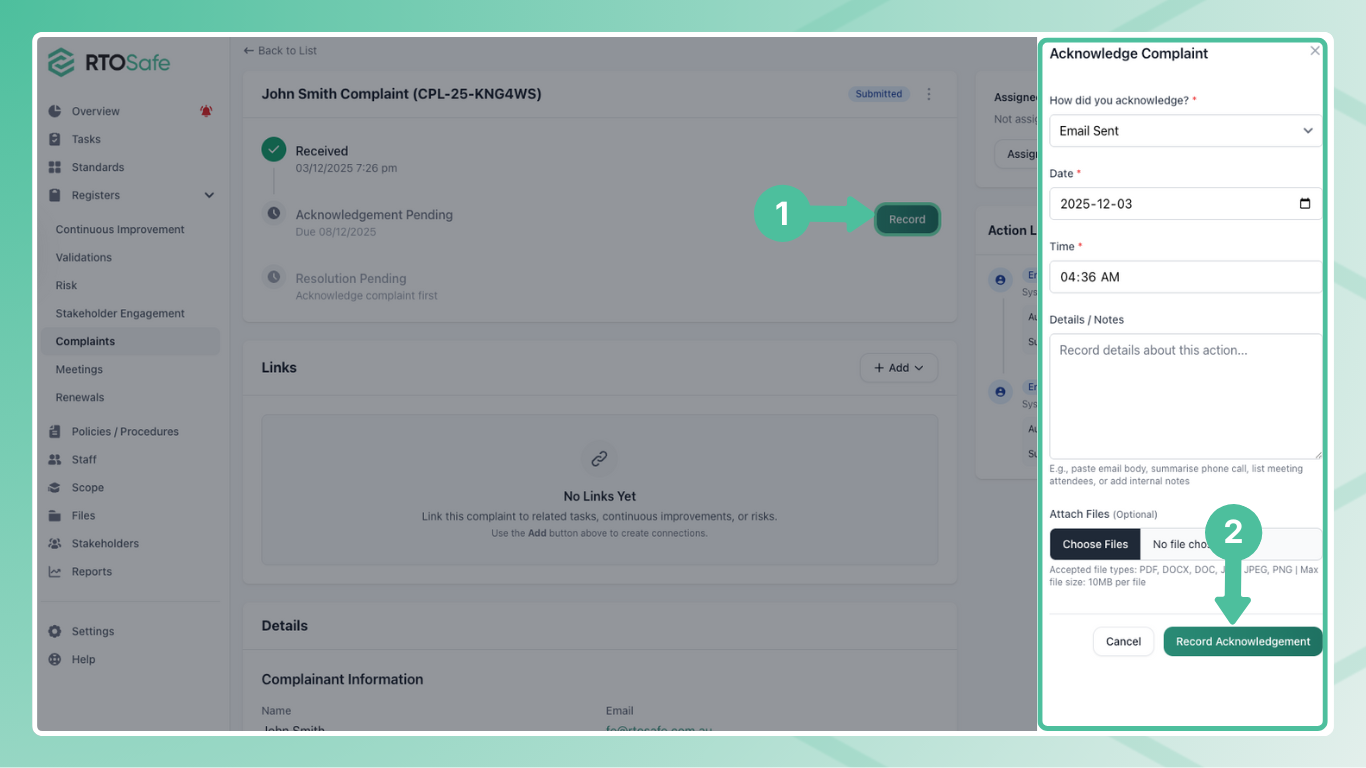
From the complaint details page, select **Acknowledge**. This opens a form where you record how you acknowledged the complaint:
* **Method**: Email Sent, Phone Call, or Meeting
* **Date and time**: When the acknowledgement happened
* **Details**: What you communicated to the complainant
* **Attachments**: Any supporting documents (e.g., copy of acknowledgement email)
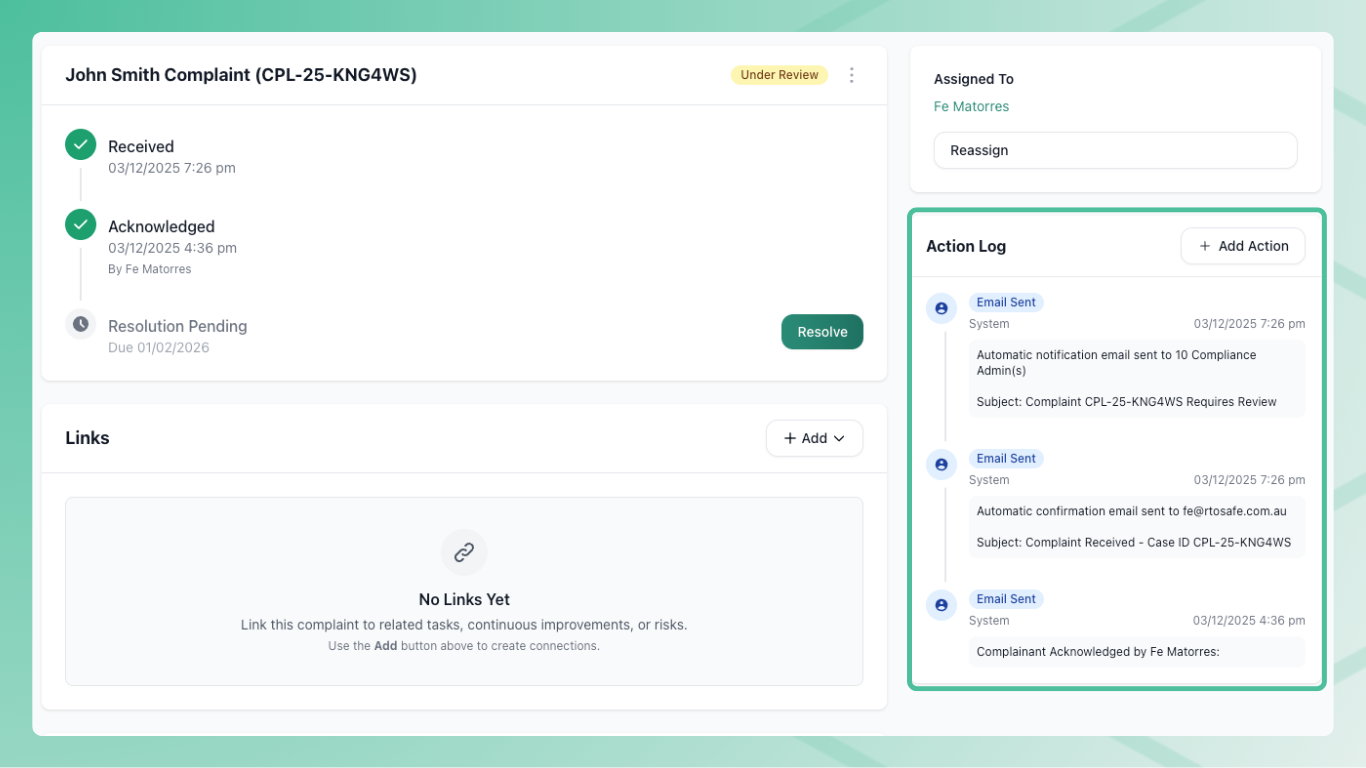
This records the acknowledgement on the complaint timeline and changes the status to `Under Review`.
If the complaint isn't already assigned to someone, acknowledging it automatically assigns it to you.
***
## Recording Actions
Use action logs to document everything you do while handling a complaint. From the complaint details page, select **Add Action**.
**Action types:**
* **Email Sent** — Correspondence you've sent to the complainant or others
* **Email Received** — Responses or additional information received
* **Phone Call** — Conversations with the complainant or relevant parties
* **Meeting** — Face-to-face or virtual meetings held
* **Internal Note** — Investigation notes, observations, or decisions
Each action records what happened, when it happened, and who logged it. You can attach files to any action.
***
## Linking to Other Records
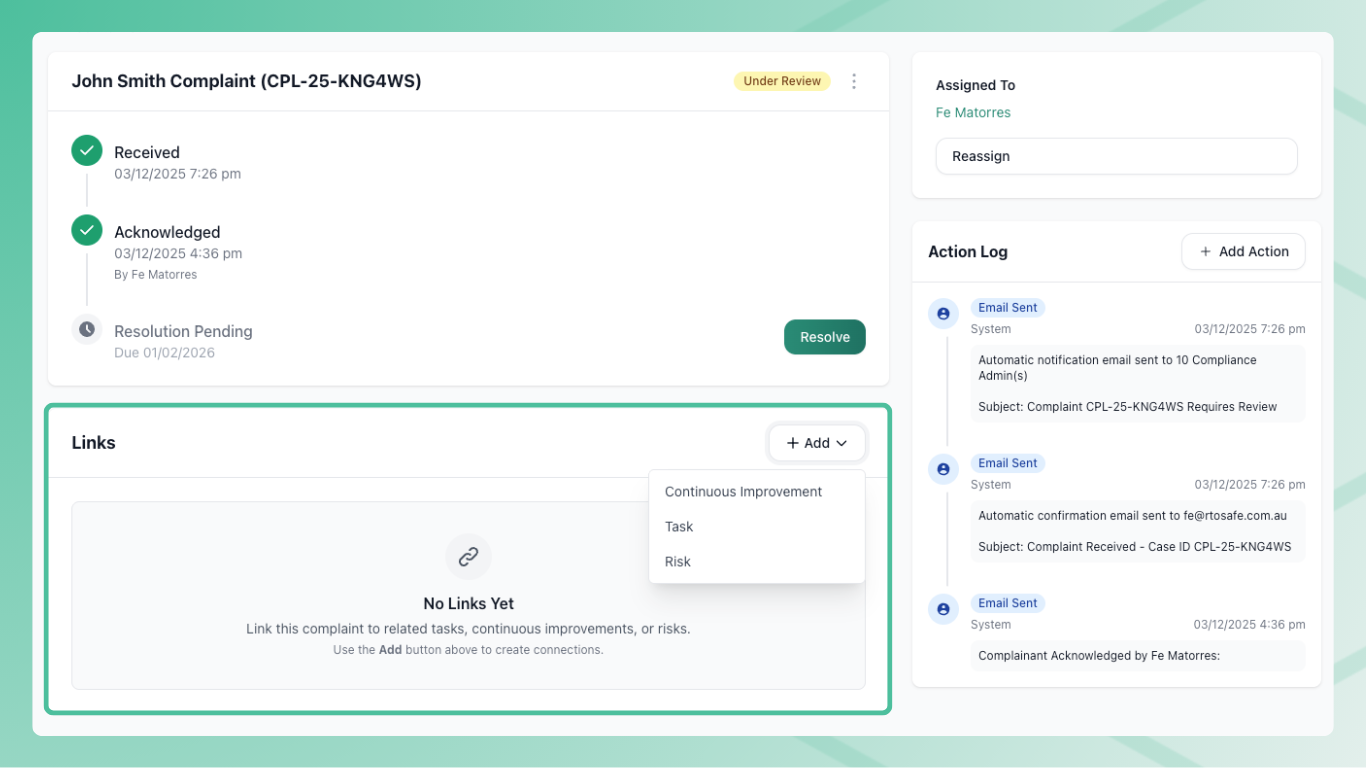
Complaints often lead to follow-up work. You can link a complaint to:
* **Tasks** — Create or link compliance tasks for follow-up actions
* **Risks** — Document risks identified through the complaint
* **Continuous Improvements** — Record improvement opportunities
From the complaint details page, use the **Link** menu to connect related records. Linked items appear on the complaint timeline.
***
## Resolving a Complaint
When you've completed your investigation and communicated the outcome to the complainant, select **Resolve**.
You'll need to enter resolution notes explaining:
* What was investigated
* What the outcome was
* What actions were taken (if any)
This changes the status to `Resolved` and moves the complaint to the Resolved tab.
***
## Archiving Complaints
Resolved complaints can be archived to remove them from your active views. From a resolved complaint's menu, select **Archive**.
Archived complaints:
* No longer appear in the Resolved tab by default
* Still exist in the system for audit purposes
* Can be viewed using the archive filter
***
## Overdue Alerts
RTOSafe creates alerts when deadlines are approaching or overdue:
* **Acknowledgement overdue** — Complaint wasn't acknowledged within your configured timeframe
* **Resolution overdue** — Complaint wasn't resolved within your configured timeframe
These alerts appear on your dashboard and in the complaint list. Completing the relevant action (acknowledge or resolve) clears the alert.