# Invite a Consultant
Working with an external compliance consultant? You can give them access to your RTOSafe account so they can work alongside your team — no need to share logins or export data.
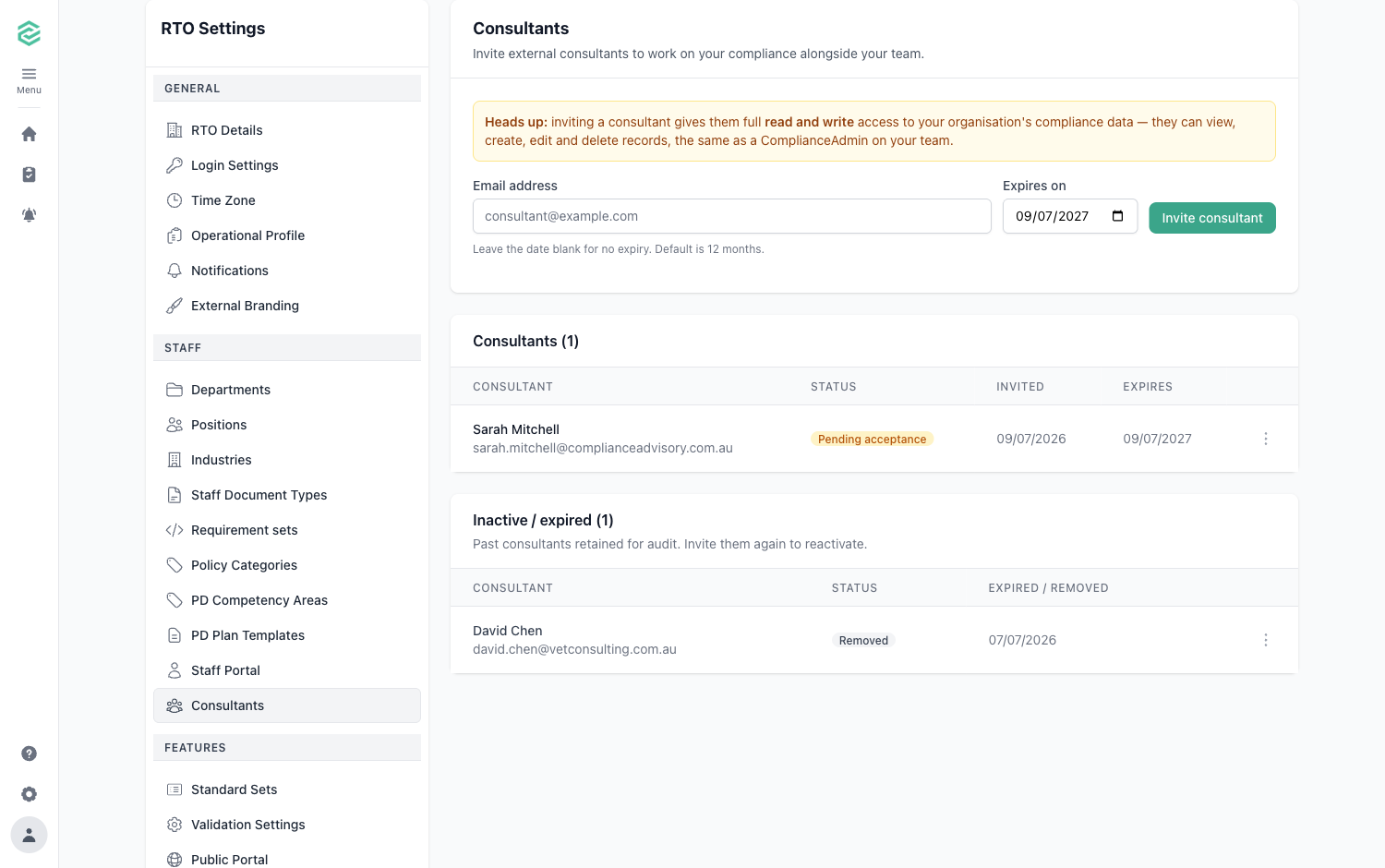
A consultant gets **full read and write access** to your compliance data — they can view, create, edit and delete records, the same as a Compliance Admin on your team. Only invite people you trust with that level of access.
***
## Before You Start
* You need to be a **Compliance Admin** on your own staff to manage consultants.
* The consultant must already have an RTOSafe account. If they don't, ask them to [contact support](mailto:support@rtosafe.com.au) to get set up first.
***
## Steps
1
Go to [**Consultants**](https://app.rtosafe.com.au/Consultants) under **RTO Settings**.
2
Enter the consultant's **email address**.
3
Set an **expiry date** if you want their access to end automatically. It defaults to 12 months — leave it blank for no expiry.
4
Select **Invite consultant** and confirm.
***
## What Happens Next
* The consultant gets an email inviting them to your account. They show as **Pending acceptance** until they accept.
* Once they accept, their status changes to **Active** and they can open your account from the **Switch RTO** menu using their own login.
* All consultants sign in with multi-factor authentication (MFA), so their access is protected the same way your staff accounts are.
***
## Common Issues
"We can't find that consultant"
They don't have an RTOSafe account yet, or they're not set up to be invited as a consultant. Ask them to email support@rtosafe.com.au to get started.
"This person is an active staff member"
Someone can't be both active staff and a consultant in the same account. Deactivate their staff record first if you want to bring them in as a consultant.
The consultant can't see anything yet
They haven't accepted the invitation. Their access stays inactive until they click **Accept** in the invite email.