<!-- RTOSafe Help — rendered version: https://rtosafe.com.au/help/feedback-forms -->

# Design a Feedback Form

Feedback forms let students, employers and others give feedback online, through a link you share. Every response lands in your [Feedback Register](/help/feedback) as its own record, already categorised and linked to the right training product. You review and close responses the same way as feedback you've recorded yourself.

***

## When to Use This

Use a form when you want feedback from a group at once, such as end-of-course surveys, employer check-ins or feedback after an industry consultation. For a single comment someone made to you, [add it to the register](/help/feedback) instead.

***

## Steps

<div class="help-stepper">

<div class="help-step">
<div class="help-step-number">1</div>
<div class="help-step-content">

**Create the form**

Go to [**Feedback Forms**](https://app.rtosafe.com.au/FeedbackForms) and select **New Form**. Give it a name, and optionally an introduction and a thank-you message.

To collect feedback for a [Stakeholder Engagement](/help/stakeholder-engagement), start from the engagement's **Create Feedback Form** button instead. The form is then linked to that engagement.

</div>
</div>

<div class="help-step">
<div class="help-step-number">2</div>
<div class="help-step-content">

**Decide who people have to say they are**

**Require Name** and **Require Email** are both ticked by default. Untick them to make name and email optional, so people can choose not to give their details.

</div>
</div>

<div class="help-step">
<div class="help-step-number">3</div>
<div class="help-step-content">

**Choose how responses are classified**

Set the **Feedback Category** for every response. For **Stakeholder Type**, leave **Let submitter choose** or pick a fixed type, such as Employer.

For **Training Product**, either pick one product (every response is about that product) or choose **Ask the submitter to choose** a qualification, skill set, course or unit. Linking a training product means responses show on that product's **Feedback** page and in reporting.

</div>
</div>

<div class="help-step">
<div class="help-step-number">4</div>
<div class="help-step-content">

**Add your questions**

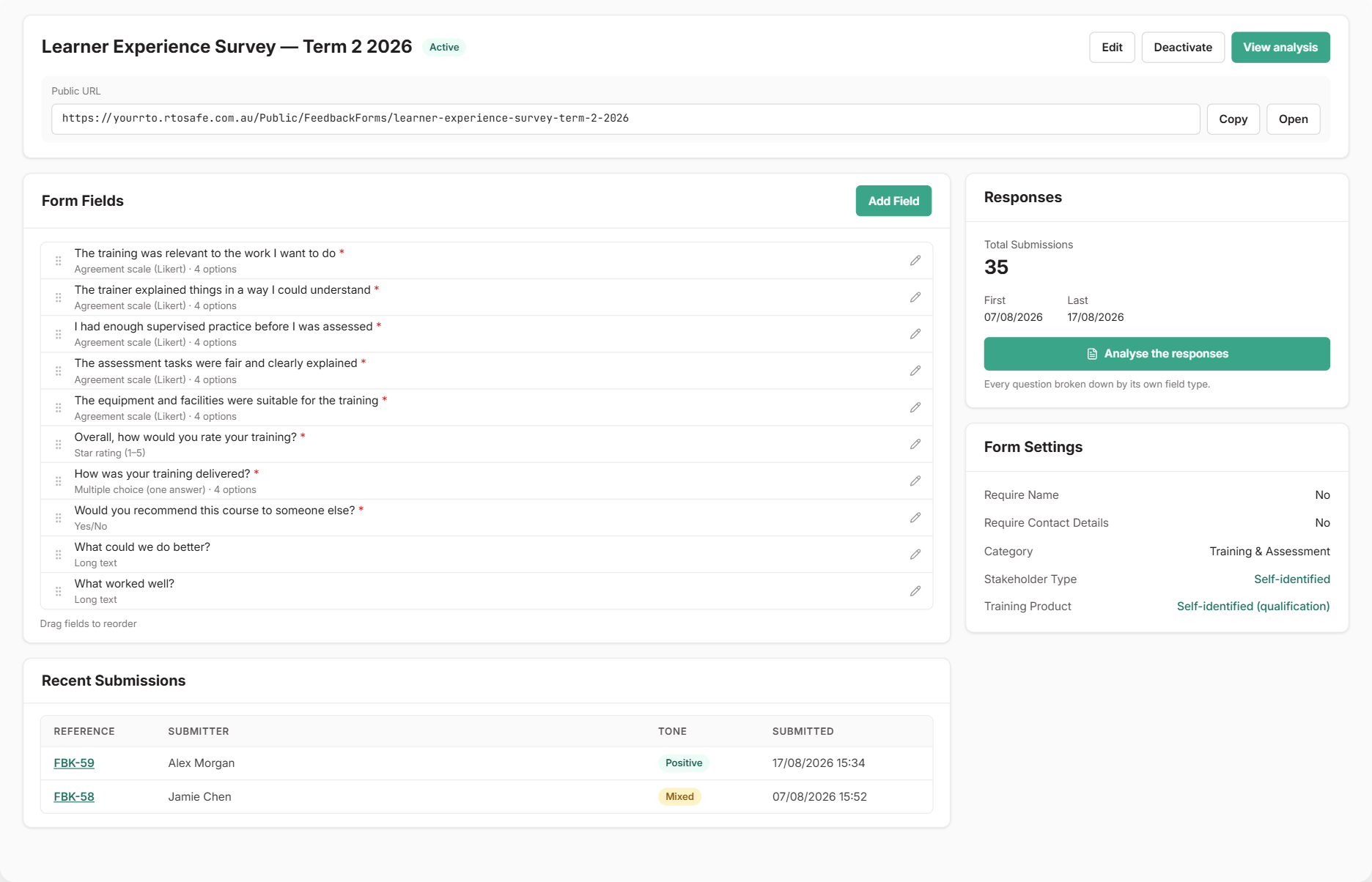
Select **Create Form**, then use **Add Field** on the next page. Drag fields to reorder them.

</div>
</div>

<div class="help-step">
<div class="help-step-number">5</div>
<div class="help-step-content">

**Activate the form**

New forms start inactive. When your questions are ready, select **Activate Form**. Then [share it](/help/feedback-forms-sharing).
</div>
</div>

</div>

<figure><img src="/help/assets/feedback-forms-1.png" alt="Feedback form details page showing the Form Fields list with agreement scale, star rating, multiple choice, yes/no and long text questions, the Add Field button, the Responses summary and the Form Settings panel"><figcaption></figcaption></figure>

***

## Choosing Question Types

Most forms only need a few types:

* **Star rating (1-5)** for quick satisfaction scores
* **Agreement scale (Likert)** for statements like "My trainer explained things clearly". It uses the same four-point scale as the Quality Indicator questionnaires (no neutral middle option), so you can compare results with your [Quality Indicator](/help/quality-indicators) data.
* **Yes/No**, **Multiple Choice**, **Checkboxes** and **Dropdown** for set answers
* **Long Text** for "What could we do better?"

Keep forms short. A few well-chosen questions get more responses than a long survey.

***

## Changing a Form After Responses Arrive

You can keep improving a form while it's in use. Adding fields, changing answer options and reordering are all fine.

If you change a question's wording or type after people have answered it, RTOSafe keeps the original for the answers already given and starts a new version. Your reports still treat them as the same question.

To remove a question, deactivate the form first. A form can't be deleted once it has responses; deactivate it instead.

***

## Common Issues

<details>
<summary><strong>Activate Form won't work</strong></summary>
The form needs at least one field, and every Multiple Choice, Checkboxes or Dropdown question needs at least two answer options.
</details>

<details>
<summary><strong>There's no option to remove a field</strong></summary>
Fields can only be removed while the form is inactive. Deactivate it, remove the field, then activate it again.
</details>