# Track Feedback Trends
Individual feedback records show what happened to one comment. Reporting shows the patterns: what people are raising, which training products attract negative feedback, and how quickly your team responds. It's also how you show that feedback actually feeds into improvement.
> Related to Standards for RTOs 2025, Standard 4.4: monitoring and evaluating your performance, including collecting and analysing feedback from students, staff, industry and employers.
***
## Feedback Trends
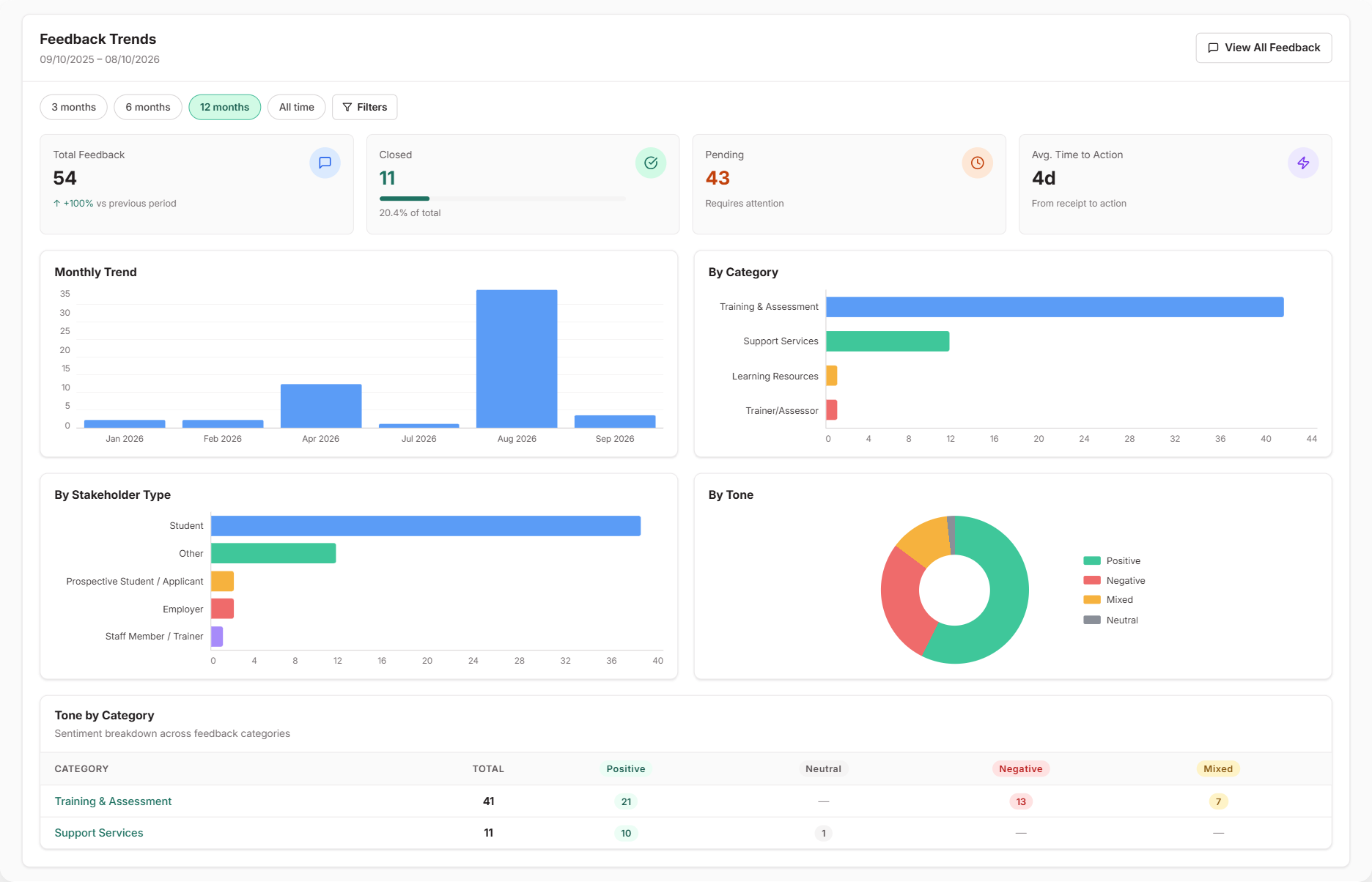
Go to [**Reports → Feedback Trends**](https://app.rtosafe.com.au/Reports/FeedbackTrends). It covers the last 12 months by default; switch to 3 or 6 months, or all time.
The summary cards show total feedback compared with the previous period, how much is closed and still pending, and the **Avg. Time to Action** from receipt to action. Below them, charts break feedback down by month, category, stakeholder type and tone.
Two tone breakdowns are especially useful for spotting problems early:
* **Tone by Category** shows which areas of your RTO attract the most negative feedback.
* **Tone by Training Product** shows which courses or units need attention. It appears once feedback is linked to training products.
Use the filters to focus the whole report on one category, stakeholder type, training product, [feedback form](/help/feedback-forms-analysis) or [engagement](/help/stakeholder-engagement). **View All Feedback** opens the matching records in the register.
***
## Feedback on a Training Product
Open a training product from your scope and select **Feedback** in the side menu. It lists all feedback linked to that product, with quick views for **Negative** and **Unactioned** feedback. Expand a row to see what was done and whether an improvement was raised.
The product's compliance summary also includes a **Stakeholder feedback** line, so unactioned feedback is visible alongside its other compliance work.
***
## Feedback About a Staff Member
When feedback is recorded as being about someone, it appears on the **Feedback** tab of their staff record. This is useful for trainer performance conversations and for [professional development](/help/pd-plans) planning.
***
## For Leadership
The [**CEO Report**](https://app.rtosafe.com.au/CeoReport) includes a **Feedback (Last 90 Days)** summary with positive, negative and unactioned counts. Owners and executives get a quick read without opening the register.
***
## Common Issues
A training product shows no feedback
Feedback only appears there when it's linked to that product. Use the **Scope Item** field when adding feedback, or set a training product on your feedback forms.
Tone shows as Pending
Tone analysis runs in the background shortly after feedback is recorded. Check again in a few minutes, or set the tone yourself.