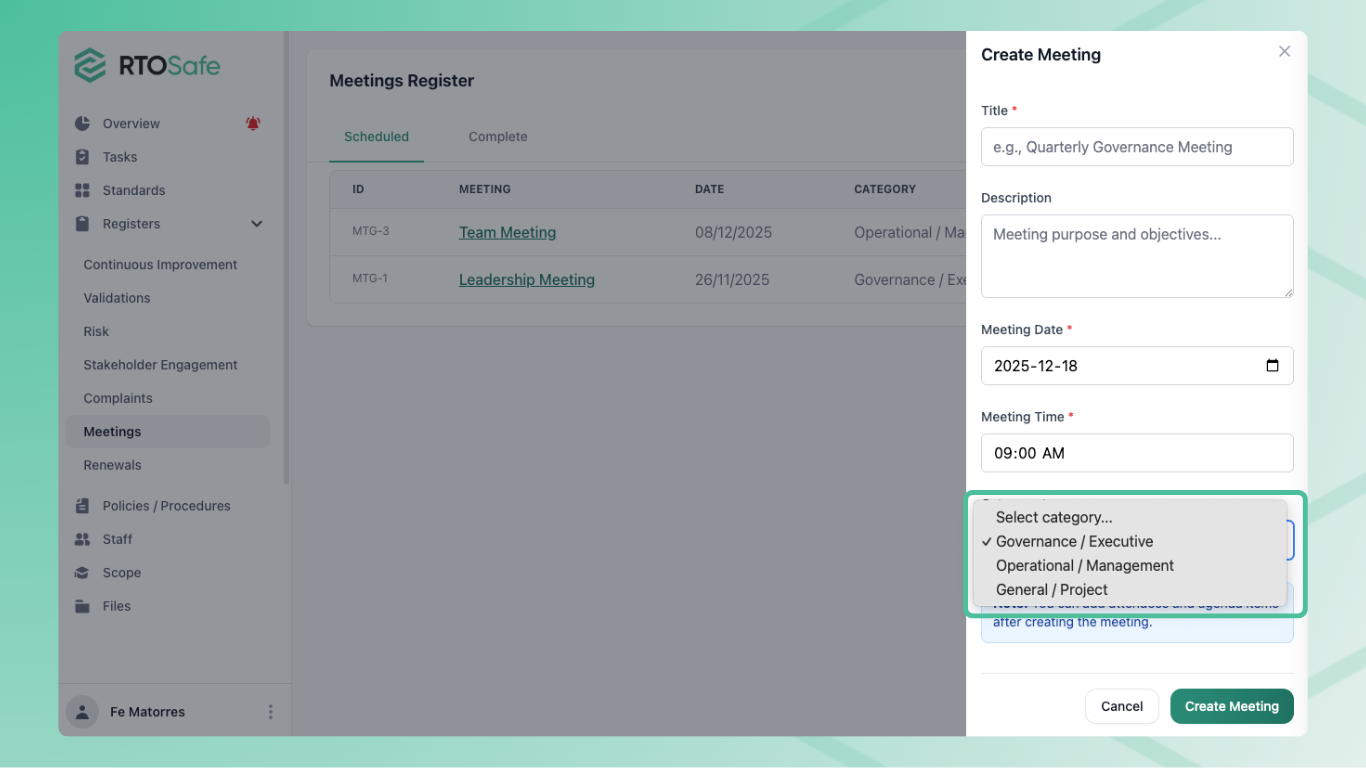
# Meeting Register
The meeting register lets you record meetings, capture decisions, and link actions to agenda items. It creates an audit trail of your governance and management meetings.
***
## Why Use the Meeting Register
Auditors want to see that your RTO has functioning governance arrangements. The meeting register provides evidence of:
* Regular governance and management meetings
* Documented decisions with clear approval
* Actions that flow from decisions (tasks, risks, improvements)
* Who was involved and when
***
## Enabling the Meeting Register
The meeting register is optional. To switch it on:
1
Go to [**RTO Settings → Meetings**](https://app.rtosafe.com.au/MeetingsSettings)
2
Turn on the **Meetings Feature** toggle
Once enabled, **Meetings** appears in your main navigation for all staff.
Only Compliance Admins can enable or disable this feature.
***
## Creating a Meeting
1
Go to [**Meetings**](https://app.rtosafe.com.au/Meetings) and select **Create**
2
Enter the meeting details:
* **Title** — a clear name for the meeting
* **Date and Time** — when the meeting will occur
* **Category** — choose from Governance / Executive, Operational / Management, or General / Project
* **Description** (optional) — purpose and objectives
3
Select **Create**
New meetings start with `Planned` status.
***
## Choosing the Right Category
Use categories to organise your register and filter during audits:
| Category | Use for |
| ------------------------ | --------------------------------------------------------- |
| Governance / Executive | Board meetings, executive reviews, strategic decisions |
| Operational / Management | Team meetings, departmental reviews, operational planning |
| General / Project | Project meetings, working groups, ad-hoc discussions |
***
## Adding Agenda Items and Attendees
Open the meeting to add:
* **Attendees** — search and add staff members or external stakeholders
* **Agenda Items** — add discussion topics with optional notes
You can reorder agenda items using the move controls.
***
## Recording Decisions
During or after a meeting, add decisions to each agenda item:
1. Open the meeting and select an agenda item
2. Add a **Decision** with what was decided and who approved it
3. The system records when it was added and by whom
Decisions create a formal record of what your governance body approved.
***
## Linking Actions to Decisions
Each agenda item can link to:
* **Tasks** — compliance or operational work to complete
* **Risks** — new or existing risks to manage
* **Continuous Improvements** — improvement initiatives arising from the discussion
* **Documents** — meeting papers, reports, or evidence
These links show auditors that your governance decisions result in concrete actions.
***
## Meeting Status
Meetings progress through three statuses:
| Status | When to use |
| ------------- | ------------------------------ |
| `Planned` | Before the meeting takes place |
| `In Progress` | During the meeting |
| `Completed` | After the meeting is finished |
Once a meeting is marked `Completed`, you can't add or remove agenda items, decisions, or actions. This preserves the audit trail.