<!-- RTOSafe Help — rendered version: https://rtosafe.com.au/help/positions-reporting-lines -->

# Set Up Reporting Lines

Every staff member in RTOSafe has a position. Reporting lines connect those positions — who reports to whom — so RTOSafe can draw your organisation structure for you and keep it up to date as staff come and go.

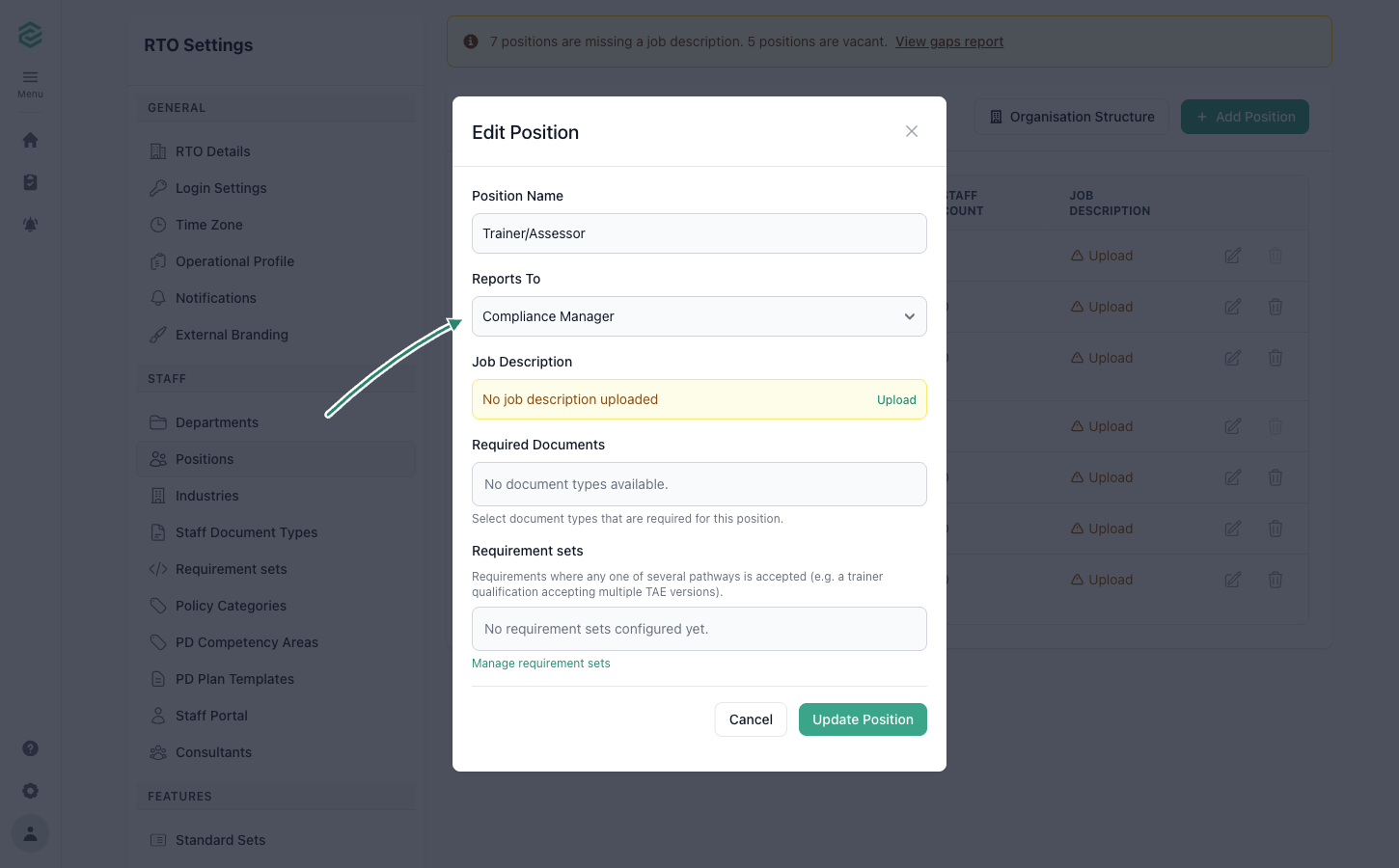
<figure><img src="/help/assets/positions-reporting-lines-1.png" alt="Edit Position modal with an arrow indicating the Reports To dropdown"><figcaption></figcaption></figure>

***

## Steps

<div class="help-stepper">

<div class="help-step">
<div class="help-step-number">1</div>
<div class="help-step-content">

Go to [**Positions**](https://app.rtosafe.com.au/Positions) (under **Settings**)

</div>
</div>

<div class="help-step">
<div class="help-step-number">2</div>
<div class="help-step-content">

Select **Edit** on a position

</div>
</div>

<div class="help-step">
<div class="help-step-number">3</div>
<div class="help-step-content">

Choose who it answers to in **Reports To**

Leave it blank for your most senior position (usually the CEO) — that position sits at the top of the chart.

</div>
</div>

<div class="help-step">
<div class="help-step-number">4</div>
<div class="help-step-content">

Select **Save**, then repeat for your other positions

</div>
</div>

</div>

***

## See Your Organisation Structure

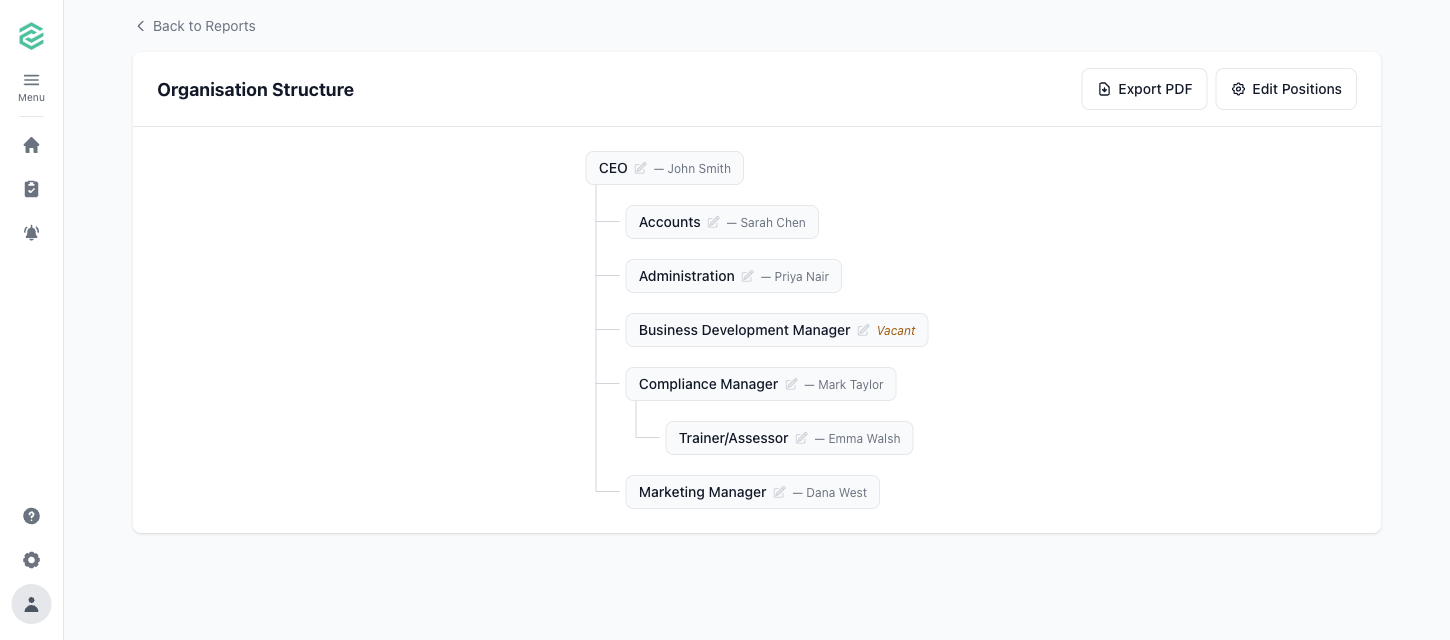
Once your reporting lines are set, go to [**Reports → Organisation Structure**](https://app.rtosafe.com.au/Reports/OrgChart) to see the chart. Each position shows the staff currently in it, and positions with nobody in them are flagged as **Vacant**.
<figure><img src="/help/assets/positions-reporting-lines-2.png" alt="Organisation Structure chart showing positions connected by reporting lines with staff listed under each position"><figcaption></figcaption></figure>

Spot something wrong? Select the pencil icon on any position in the chart to fix its reporting line without leaving the page.

Select **Export PDF** to download the chart — handy for induction packs, audit evidence, or your next staff meeting.

***

## What Happens Next

* The chart updates automatically — when someone joins, leaves, or changes position, you don't need to redraw anything
* Staff appear under a position based on the **Position** field on their staff record (see [Add Staff](/help/adding-staff))

***

## Common Issues

<details>

<summary><strong>"This would create a circular reporting line"</strong></summary>

Two positions can't report to each other, even indirectly (for example, A reports to B, and B reports back to A). Follow the chain of Reports To selections and change one of them so the chain always leads up to your top position.

</details>

<details>

<summary><strong>A position shows as Vacant</strong></summary>

Nobody active is assigned to that position. To fill it, go to [**Staff**](https://app.rtosafe.com.au/Staff), select the person, and set their **Position** under **Personal Details**. The Vacant flag clears as soon as someone is assigned. If the role is genuinely unfilled, the flag is doing its job — it's a handy prompt for recruitment planning.

</details>

<details>

<summary><strong>A position is sitting at the top of the chart that shouldn't be</strong></summary>

Its **Reports To** is blank, so RTOSafe treats it as a top-level position. Edit the position and choose who it reports to.

</details>

<details>

<summary><strong>What happens to reporting lines when I delete a position?</strong></summary>

Any positions that reported to it move up to report to the position above it, so your chart stays connected. You can't delete a position while active staff are assigned to it — move them to another position first.

</details>