<!-- RTOSafe Help — rendered version: https://rtosafe.com.au/help/staff-qualifications-units -->

# Add Qualifications & Units

Qualifications, skill sets and units come straight from training.gov.au, so you don't need to set up a document type for each one. RTOSafe also knows which units sit inside a qualification, which helps it match a trainer's credentials against the units they deliver.

***

## Adding a Qualification or Unit

<div class="help-stepper">

<div class="help-step">
<div class="help-step-number">1</div>
<div class="help-step-content">

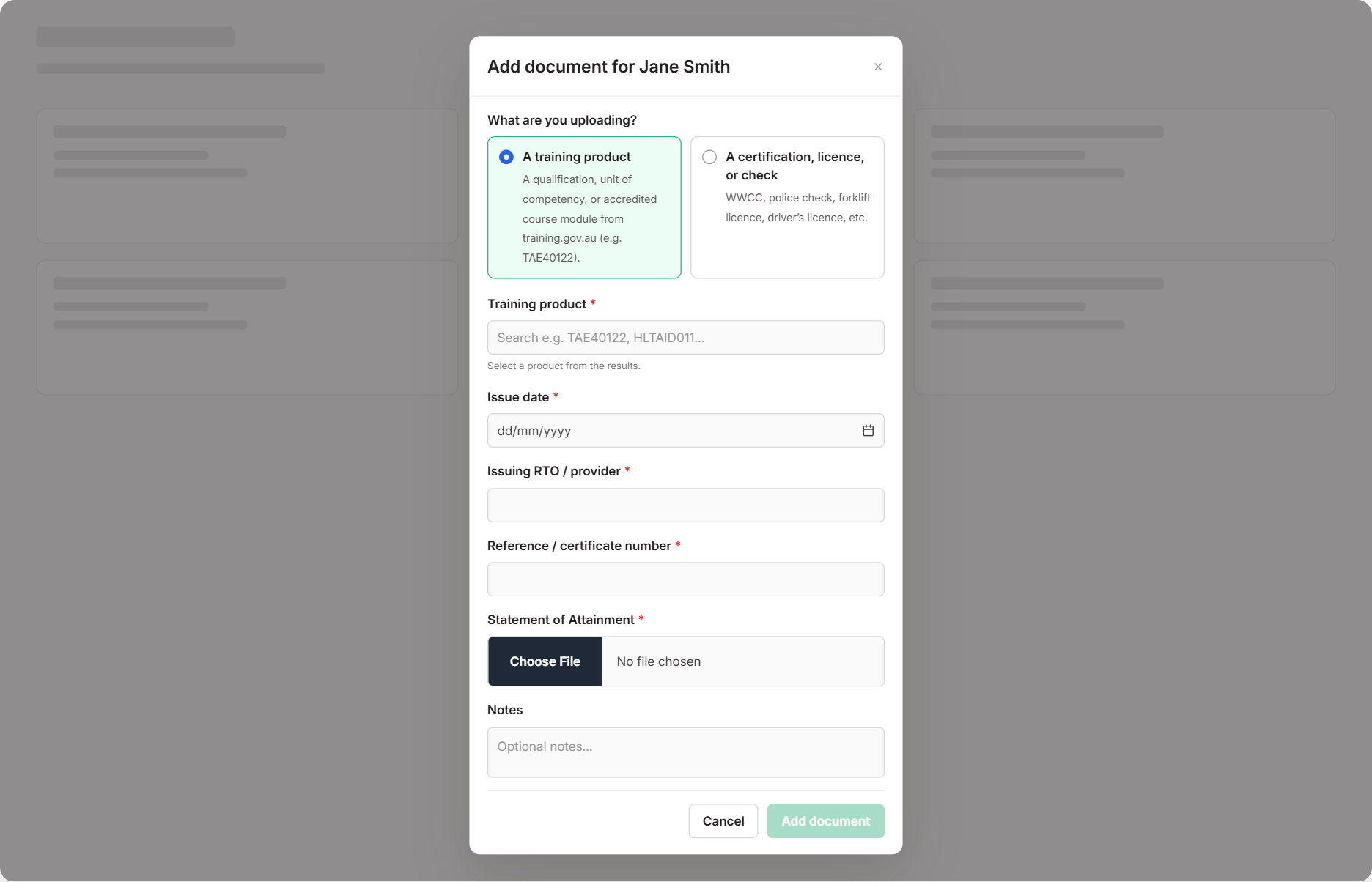
On the staff member's **Documents** tab, select **Add Document** and choose **A training product**

</div>
</div>

<div class="help-step">
<div class="help-step-number">2</div>
<div class="help-step-content">

Search for the **full code** — for example `TAE40122` or `CHCMHS008`

Partial codes and keywords won't match. If the code isn't already in RTOSafe, select **Search in training.gov.au** to find it.

</div>
</div>

<div class="help-step">
<div class="help-step-number">3</div>
<div class="help-step-content">

Enter the issue date, issuing RTO and certificate number, and upload the testamur or statement of attainment

For a qualification, also upload the **Record of Results**.

</div>
</div>

<div class="help-step">
<div class="help-step-number">4</div>
<div class="help-step-content">

Select **Add document**

</div>
</div>

<div class="help-step">
<div class="help-step-number">5</div>
<div class="help-step-content">

For a qualification or skill set, tick the units they completed on the next screen and select **Save units**
</div>
</div>

</div>

<figure><img src="/help/assets/staff-qualifications-units-1.png" alt="Add document form with A training product selected, showing the Training product search box, issue date, issuing RTO or provider, reference or certificate number, and the Statement of Attainment upload"><figcaption></figcaption></figure>

Then [verify the document](/help/staff-documents#verifying-documents) so it counts.

***

## Superseded Qualifications and Units

Trainers often hold older versions, like `TAE40116`. You add these the same way — the training.gov.au search always includes superseded products, so type the full code and select **Search in training.gov.au** if it doesn't come up straight away.

Once it's verified, RTOSafe checks the National Register to decide whether an older unit counts as equivalent to the current one for the trainer's scope. See [Link Competency Evidence](/help/link-competency-evidence) for how that works.

***

## Units Not Listed in the Qualification

The tick list shows the units that belong to the qualification. If one of their units isn't there — an elective imported from another qualification, or an older superseded unit — use **Add a unit not in this qualification** and search for the full code.

If RTOSafe doesn't have the unit yet, select **Search in training.gov.au**. Adding a unit from there ticks it for you.

To change the units later, open the document and select **Manage units**. Units are locked once the document is verified.

***

## What Happens Next

* The qualification and its units count as competency evidence once verified
* They show against the trainer's units in the [Trainer Matrix](/help/trainer-matrix)

***

## Common Issues

<details>

<summary><strong>Search can't find the qualification or unit</strong></summary>

Type the full code with no spaces, like `BSBWHS332X`. Keywords and titles won't match training.gov.au.

</details>

<details>

<summary><strong>"Holds related version — not deemed equivalent"</strong></summary>

The trainer holds an older version that the National Register doesn't treat as equivalent to the unit they deliver. See [Link Competency Evidence](/help/link-competency-evidence) for your options.

</details>

<details>

<summary><strong>Can't change the units on a qualification</strong></summary>

Units are locked once the document is verified. Remove verification, update the units with **Manage units**, then verify again.

</details>