# Assign Scope
Staff scope defines which training products each trainer or assessor can deliver. When you assign scope to a staff member, you're recording which units they're qualified to train, assess, or both.
***
## Before You Start
Your RTO's scope must be synced from training.gov.au before you can assign units to staff. See [Sync Your Scope](/help/scope-sync) if you haven't done this yet.
***
## Assigning Scope
1
Go to [**Staff**](https://app.rtosafe.com.au/Staff) and open the staff member's profile
2
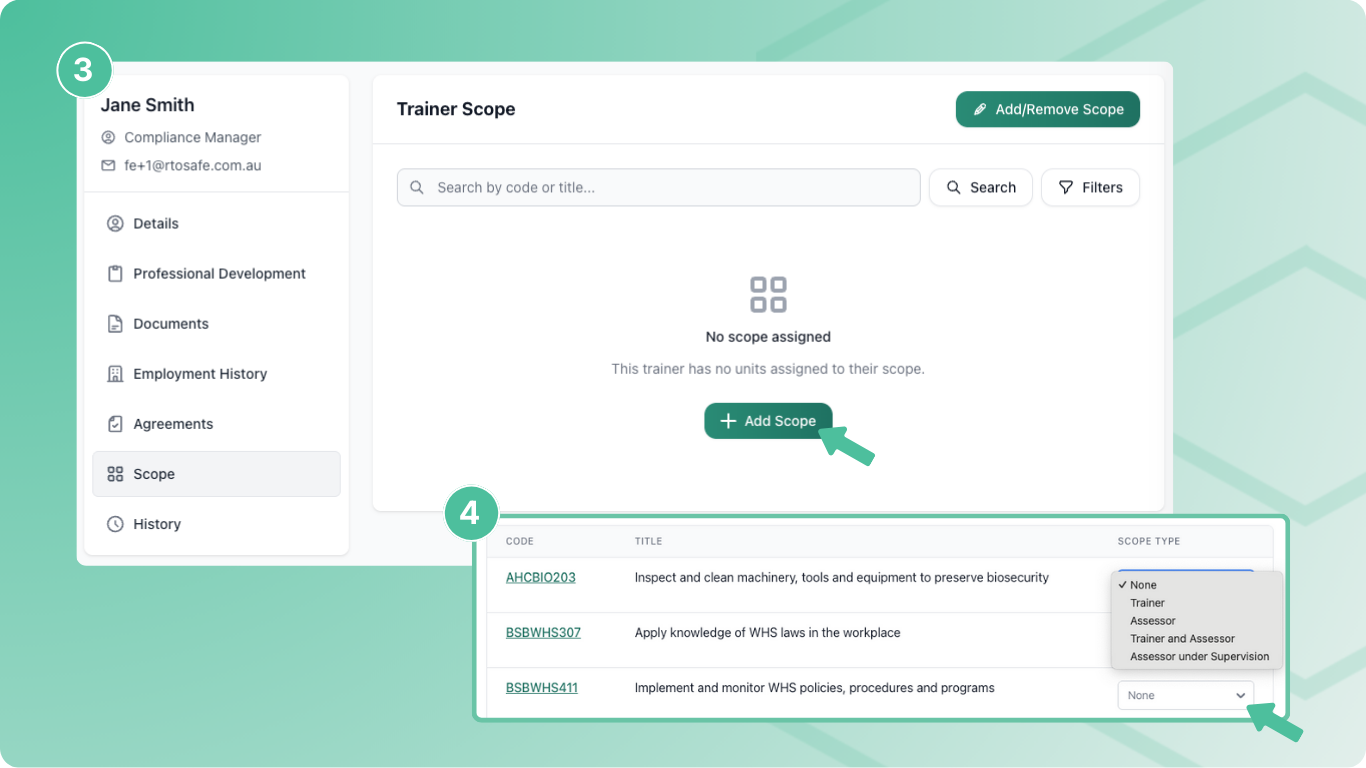
Select **Scope** from the sidebar
3
Select **Add Scope**
4
For each unit, choose a scope type from the dropdown:
* **Trainer** — can deliver training only
* **Assessor** — can assess only
* **Trainer and Assessor** — can do both
* **Assessor under Supervision** — can assess with oversight
Changes save automatically as you select each scope type.
***
## Update Multiple Units at Once
Setting scope one row at a time is slow when a trainer covers a lot of units. You can tick several and apply the same scope type in one go.
1
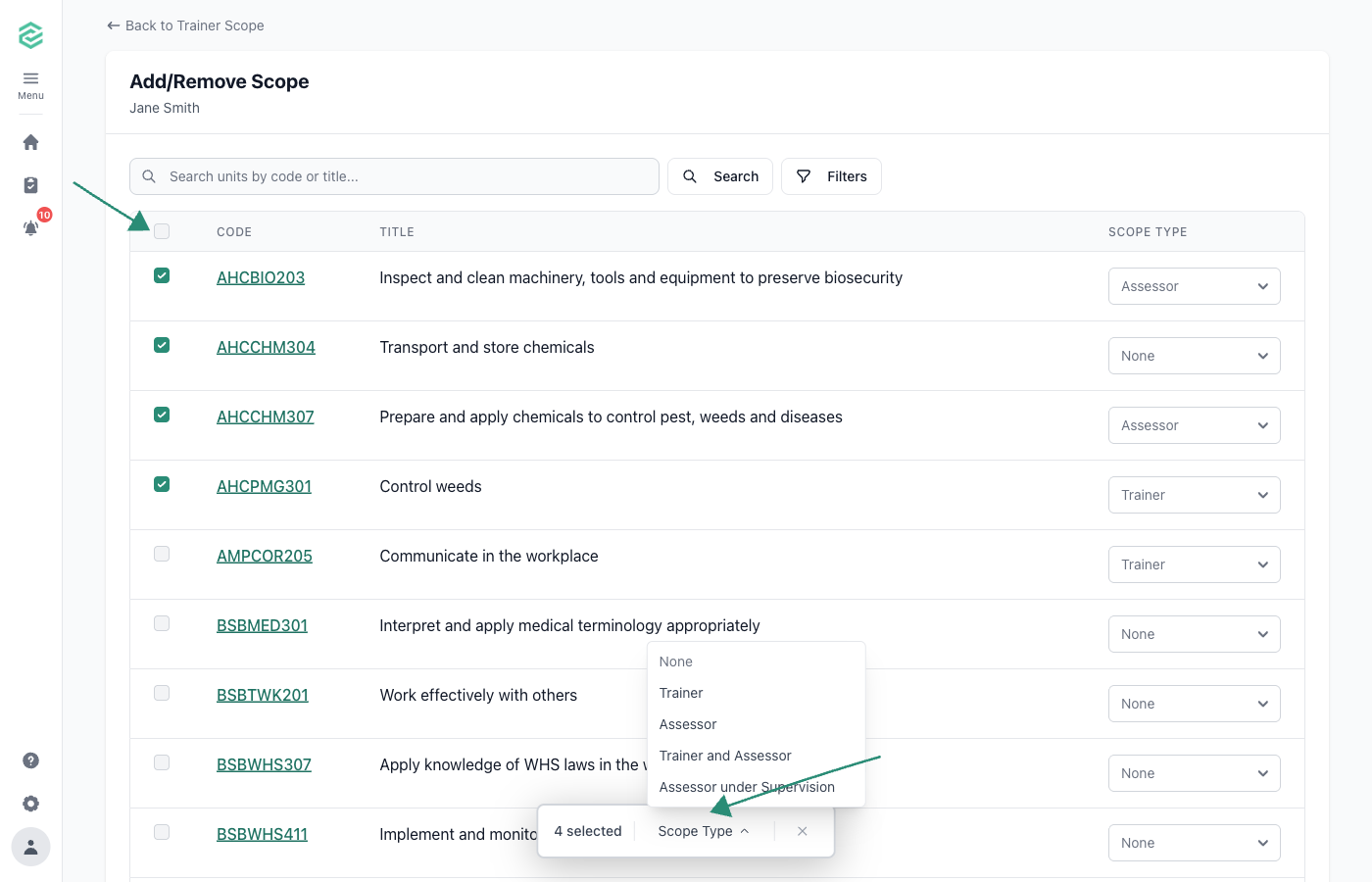
Tick the checkbox next to each unit you want to change — or tick the header checkbox to select everything. Hold **Shift** and click a second row to select a range.
2
On the bar that appears at the bottom of the page, click **Scope Type** and choose what to apply. Pick **None** to remove the trainer from those units.
3
Confirm when prompted.
You can update up to 50 units at a time.
Setting scope for a brand-new trainer across hundreds of units? [Bulk Scope Import](/help/staff-scope-bulk-import) takes a CSV and is quicker for large first-time imports.
***
## What Happens Next
* Assigned units appear in the staff member's **Scope** tab
* The Trainer Matrix report shows their scope alongside competency evidence
* PD requirements that are unit-based will now apply to this staff member for these units
* You can now [link PD activities](pd-activities.md#linking-to-units) and documents to these units as evidence
***
## Common Issues
Unit not appearing in the list
The unit isn't in your RTO's active scope — check it's synced and set up for delivery. See [Set Up Delivery](/help/delivery-streams).
Staff member not showing in reports
They may not have a trainer scope type set on their profile