# Generate the Trainer Matrix
The Trainer Matrix brings together everything about a trainer's competency in one place — their training qualifications, professional development, employment history, and documents, all mapped against the units they deliver.
***
## When to Use This
Use the Trainer Matrix when you need to:
* Prepare evidence for an audit
* Check a trainer has current industry experience for their scope
* Review gaps in a trainer's qualifications or documentation
* Export a trainer's competency evidence as a PDF
***
## Before You Start
The Trainer Matrix pulls information from several places. For a complete report, make sure the staff member has:
* **Scope assigned** — the units they train or assess. See [Assign Scope](/help/staff-scope).
* **Employment history** — verified and linked to scope. See [Employment History](/help/employment-history).
* **PD activities** — approved, with competency areas selected. See [Record PD Activities](/help/pd-activities).
* **Documents** — verified and not expired. See [Staff Documents](/help/staff-documents).
Employment history, PD activities, and documents only appear in the matrix if they're mapped to scope items. Use **Map Scope** when adding these records to link them to the right training products.
***
## Viewing the Trainer Matrix
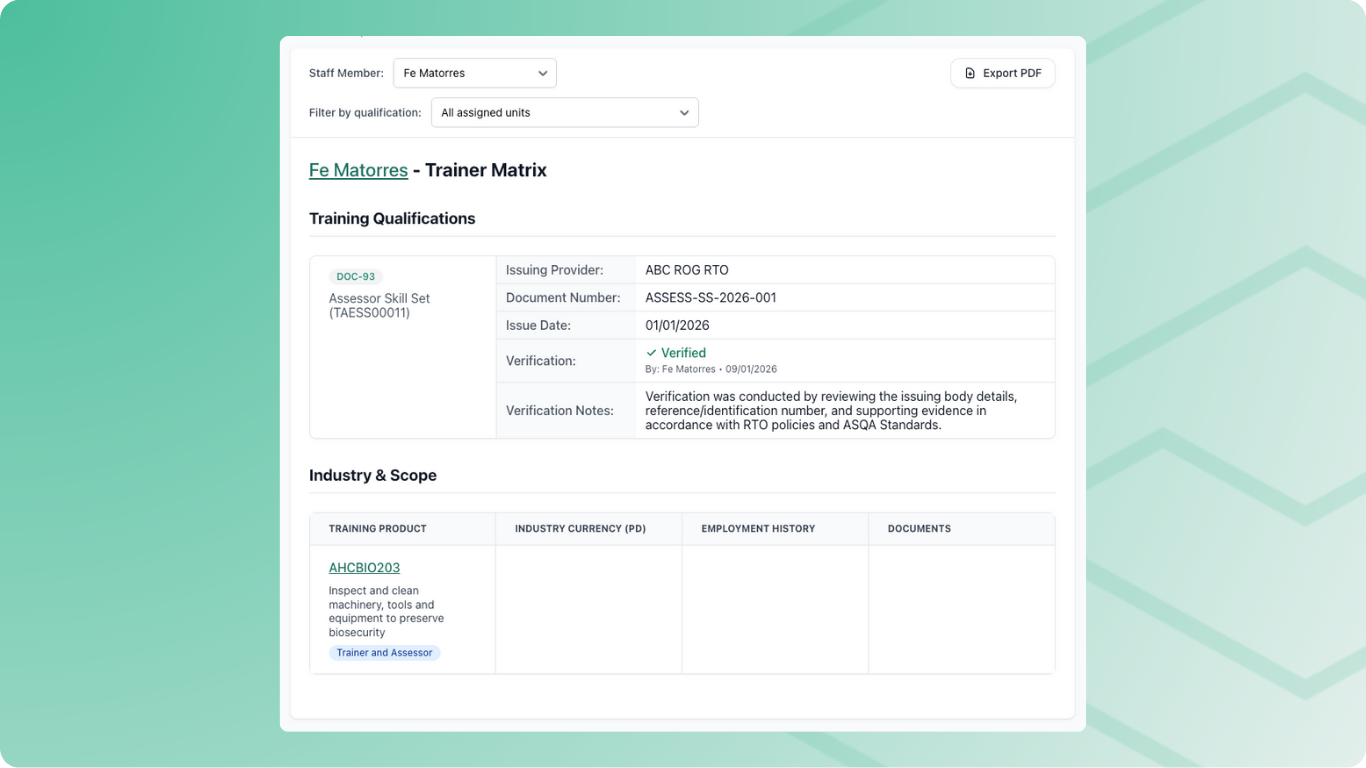
Go to [**Reports**](https://app.rtosafe.com.au/Reports) and select **Trainer Matrix**. Use the **Staff Member** dropdown to select whose matrix you want to view.
Use the filter to show only specific qualifications or delivery streams. This lets you export a targeted trainer matrix for a particular area rather than everything the trainer delivers. See [Set Up Delivery](/help/delivery-streams).
***
## What the Report Shows
**Training Qualifications** — core training credentials like TAE qualifications. See [Staff Documents](/help/staff-documents).
**Industry Qualifications** — industry-specific qualifications and credentials. See [Staff Documents](/help/staff-documents).
**Training & Assessment PD** — professional development in the Training & Assessment competency area. See [Record PD Activities](/help/pd-activities).
**Industry & Scope Matrix** — a table showing each training product with columns for Industry Currency (PD), Employment History, and Documents linked to that unit.
**Employment History, Industry Currency, Documents** — detailed sections showing the full records. These only include items that are mapped to scope items shown in the matrix above. See [Employment History](/help/employment-history), [Record PD Activities](/help/pd-activities), and [Staff Documents](/help/staff-documents).
***
## Exporting
Select **Export PDF** to download a PDF version of the trainer matrix.
You can also let staff download their own trainer matrix from the Staff Portal. Enable **Trainer Matrix Download** in [**Settings → Staff Portal**](https://app.rtosafe.com.au/StaffPortalSettings) to give trainers access to export their own PDF.
***
## Common Issues
Employment history not appearing
Employment history must be verified and mapped to scope. Check the record is verified, then use **Map Scope** to link it to the relevant units. See [Employment History](/help/employment-history).
PD activity not showing
Check the activity is approved and has a competency area selected. If you need it against specific units, use **Map Scope**. See [Record PD Activities](/help/pd-activities).
Document not showing
Documents must be verified and mapped to scope items. Check verification status and use **Map Scope** to link to training products. See [Staff Documents](/help/staff-documents).