
Assign an Access Profile
Once you’ve set up an access profile, you choose who it applies to. Profiles only apply to people with admin access (Compliance Admins and consultants). They don’t change anything in the Staff Portal.
Before You Start
- You need to be a Compliance Admin with full access to assign profiles.
- You can’t change your own access profile. Another admin needs to do it.
Steps
Open the staff member’s record from Staff.
In the Access Level section, select Edit.
Make sure Compliance Admin is ticked, then choose a profile from the Access profile list. Choose Full access to remove a profile.
Select Save Changes.
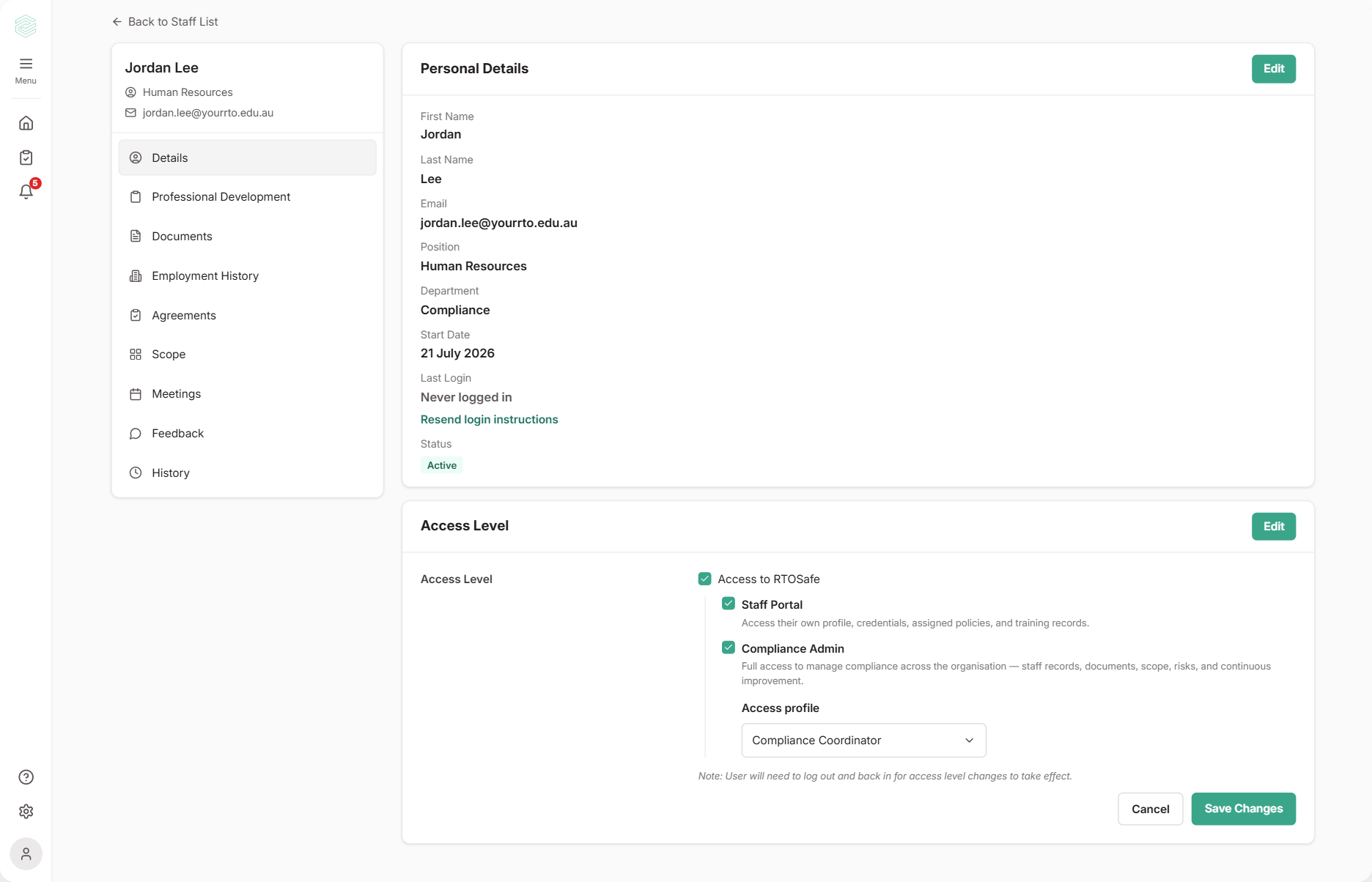
New admins always start with Full access. Add a profile straight after creating them if they need limits.
For consultants
Consultants don’t need a staff record, so don’t add them as a staff member to give them a profile. Instead, choose the profile in the Access profile list when you invite a consultant. To change it later, go to Consultants under RTO Settings and choose Change access profile from their row.
What Happens Next
- The new profile applies the next time they move to another page. They don’t need to log out. (The note about logging out on the Access Level screen is for ticking or unticking Staff Portal or Compliance Admin.)
- Their staff record shows the profile name under Access Level, and the change is recorded on their History tab.
- You can filter the Staff list by access profile to check who has what.
- We recommend asking them to try their usual tasks. Areas are connected, so they may need
Read/Writein more than one area to do some things.
Common Issues
There's no Access profile list
Tick Compliance Admin first. If it shows “Full access” with a link instead, you haven’t created a profile yet.
Access Profiles aren’t available on the Starter plan. They’re available on Team and Organisation. They also need the Staff Portal to be on for your organisation. See Set Up Access Profiles, or contact support if you need them.
The Edit button is missing
Only admins with Read/Write in every area can change someone’s access. Read only or Hidden on just one area, such as Staff or Complaints, is enough to hide it.
They can't do something in the Staff Portal
Access profiles don’t affect the Staff Portal. Check Staff Portal Settings instead.