
Record Feedback
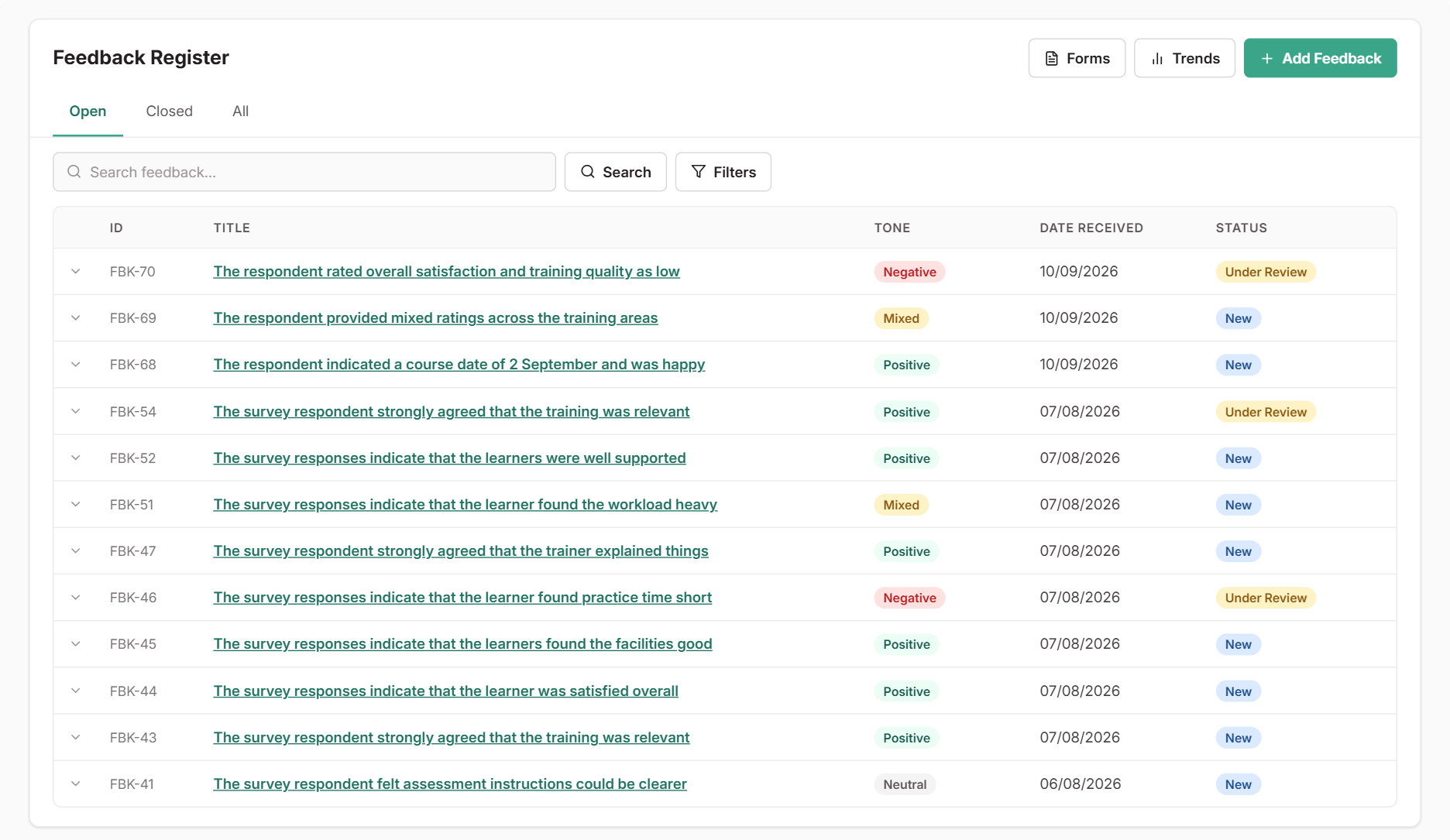
The Feedback Register keeps every suggestion, concern and compliment in one place, whoever it came from. Students, employers, industry contacts and your own staff often share useful feedback in passing. Recording it means it gets reviewed instead of lost, and it builds a record of how you listen and respond.
Feedback reaches the register in three ways:
- You add it from the Feedback Register
- Staff submit it from the Staff Portal, once you’ve turned that on
- People fill in a feedback form that you’ve shared (see Design a Feedback Form)
Add Feedback
Go to Feedback and select Add Feedback. Describe what was said, choose a category and who it came from, and enter the date you received it.
A few fields are worth knowing about:
- Scope Item appears when the category is Training & Assessment, Trainer/Assessor or Learning Resources. Link the training product so the feedback also shows on that product’s Feedback page.
- About Staff Member (under More Options) records who the feedback is about. It appears on that person’s Feedback tab in their staff record. You can add more than one staff member later by editing the feedback.
- Attachment lets you keep a copy of the original email or document.
New feedback starts as New. See Actioning Feedback for what to do next.
Feedback From Meetings and Consultations
If the feedback came from a formal consultation, such as an industry advisory meeting or an employer visit, record the Stakeholder Engagement first. Then use Add Feedback in its Feedback Received section. The feedback is linked to the engagement, so you can show what you heard and what you did with it.
Tone
RTOSafe reads each piece of feedback and tags its tone as Positive, Neutral, Negative or Mixed. Use the Tone filter to find negative feedback quickly. If a tag doesn’t look right, open the feedback and use Set Tone to change it. Tone isn’t re-checked automatically when you edit the description; choose Re-analyse if you want it updated.
Let Staff Submit Feedback
Trainers and assessors hear a lot of feedback that never reaches the compliance team. Staff submission is off by default. Turn on Feedback in Settings → Staff Portal, and staff will see Submit Feedback in their portal.
Staff can log their own feedback or feedback they’ve heard from a student, employer or anyone else. They can only see feedback they submitted, and can edit it only while it’s still New.