
Analyse Form Responses
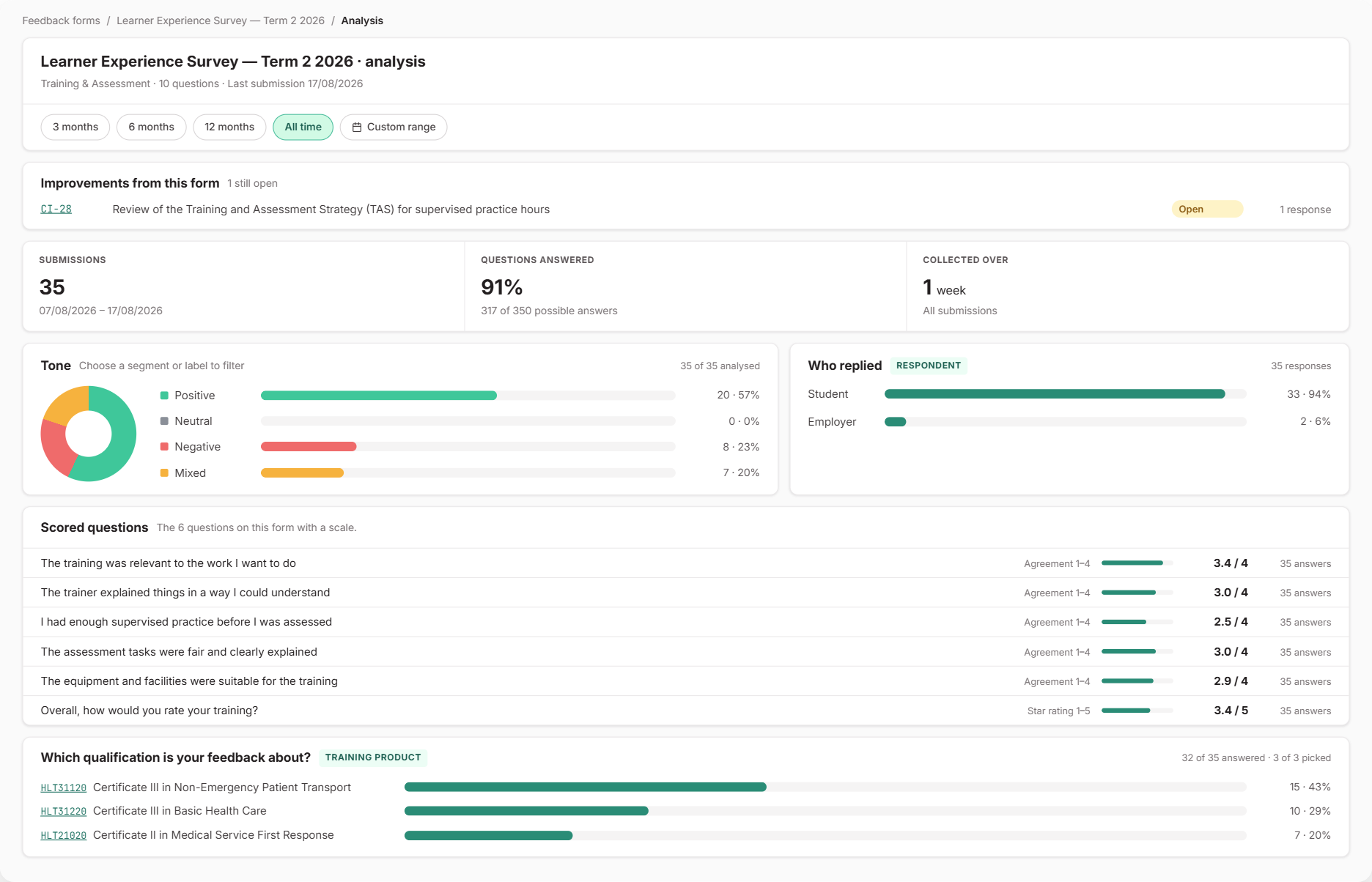
The analysis page shows every question on a form broken down across all its responses. You can narrow it to a group of people and turn what they said into one improvement. This connects what you heard to what you changed.
Open the Analysis
Open the form from Feedback Forms and select View analysis. It appears once the form has at least one response.
The page starts with all responses. Use the date options at the top to look at the last 3, 6 or 12 months, or a custom range.
Read the Results
Each question has its own card in the Response breakdown. Star ratings show an average and how many people rated 4 or 5. Agreement scales show the percentage who agree or strongly agree. Choice questions show counts and percentages, and written answers are listed in full.
A few things help you read the numbers fairly:
- Questions added part-way through are only counted against the people who could have answered them. The card tells you when it was added.
- Questions you’ve removed are hidden by default. Select Show to bring them back.
- The Tone card shows how positive or negative the responses were overall.
Focus on One Group
Select any answer to see only the people who gave it. Every other question then updates to show just that group. For example, select “Disagree” on a question about learning resources to see what those same people said everywhere else.
You can combine filters, and pick individual written answers with their tickboxes. Once a filter is on, a bar at the bottom of the page shows how many people match and which filters are applied. Select Clear filters to start again.
Turn a Pattern Into an Improvement
When a group of responses points to the same issue, filter to that group, then select Create improvement in the bottom bar. This creates one Continuous Improvement linked to every response in the group.
Leave Mark these feedback responses as actioned by this improvement ticked to close any of those responses that are still open. Each one records the improvement it was addressed by, so you don’t have to close them one by one.
If an existing improvement already covers some of these people, the bottom bar shows an existing improvements button. Use Add the other to link the rest of the group to that improvement.
Improvements raised from a form are listed at the top of its analysis page, so you can see what’s still open.
To compare this form with all your other feedback, filter the Feedback Trends report by Feedback Form.