
Staff Documents
Staff documents are the credentials and records you’d show an auditor — qualifications, licences, checks like a WWCC or police check, and other files like resumes and contracts. You can add them for staff, and when the Staff Portal is enabled, staff can upload their own. Either way, you verify them.
This article covers certifications, licences and checks. For qualifications and units from training.gov.au, see Add Qualifications & Units.
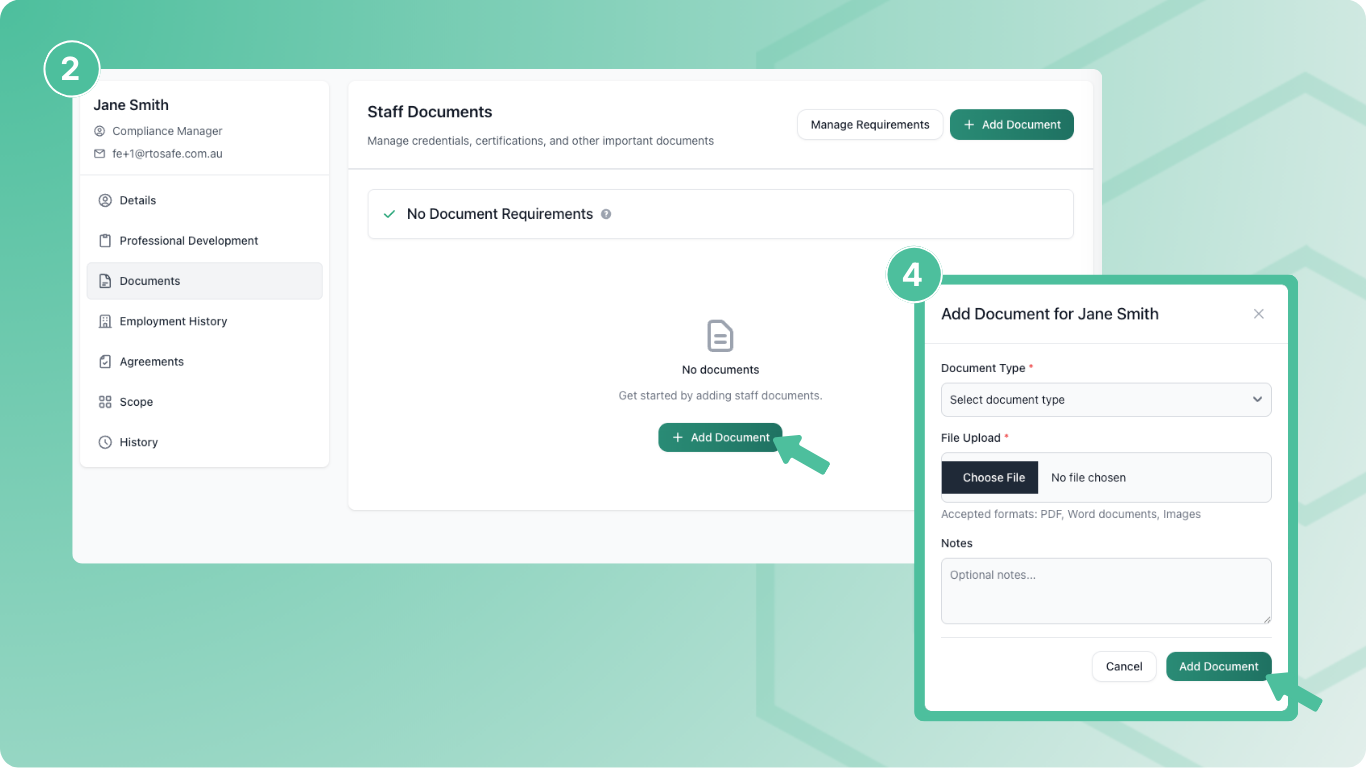
Adding a Document
Go to the staff member’s profile and select the Documents tab
Select Add Document and choose A certification, licence, or check
Pick the Certification type and upload the file
The fields change with the type. Expiring credentials (like First Aid or a WWCC) ask for the issue date, expiry date, issuing authority and reference number.
Select Add document
After saving, you can use Map Scope on the document to link it to the units it supports, so it shows in the Trainer Matrix.
Renewing something that’s expired? Add it as a new document rather than editing the old one — see Renew a Credential.
Verifying Documents
Verifying confirms you’ve checked a document is genuine. Unverified documents don’t count toward requirements, the Trainer Matrix or competency evidence.
Open the document from the staff member’s Documents tab
Select Verify Document
Choose how you verified it (for example, checked an online registry or contacted the issuing authority) and add notes
You can also attach evidence, like a screenshot of the registry check.
Select Verify Document
Once verified, the document is locked from editing. If you need to change it, select Remove Verification first.
What Happens Next
- Staff get reminder emails for expiring credentials — 60, 30 and 7 days before expiry, and again once it expires. These go to the staff member only.
- You see it on your dashboard — alerts show expired, expiring (within 60 days) and unverified documents, and each links to a report.
- Staff see it in the portal — when the Staff Portal is enabled, under My Documents, including anything they still need to upload. See Upload and Renew Your Documents.
Common Issues
Can't edit a document
Verified documents are locked. Open the document and select Remove Verification, make your change, then verify it again.
If you can’t see the edit or verify buttons at all, your access profile may make the Staff area read only for you.
Staff uploaded the wrong file
If it isn’t verified yet and the Staff Portal is enabled, they can fix it themselves from My Documents. Otherwise, open the document and use Archive Document from the Actions menu, then add the right one.
Staff member isn't getting expiry emails
Reminders go to the email they log in with, so check they have one and have Staff Portal access. They’re only sent for expiring credentials, and only for the current version — not archived or older versions.