
Actioning Feedback
Recording feedback is only half the job. The other half is showing that someone looked at it and decided what to do. RTOSafe keeps that decision, the follow-up work and the history on the feedback record.
How Feedback Moves Through the Register
| Status | What it means |
|---|---|
New | Recorded, not yet looked at |
Under Review | Someone is working on it |
Actioned | Something was done about it |
No Action Required | Reviewed, and no response was needed |
The Open tab shows New and Under Review feedback. While anything is open, an alert appears in Alerts as a reminder. It clears itself once everything is closed.
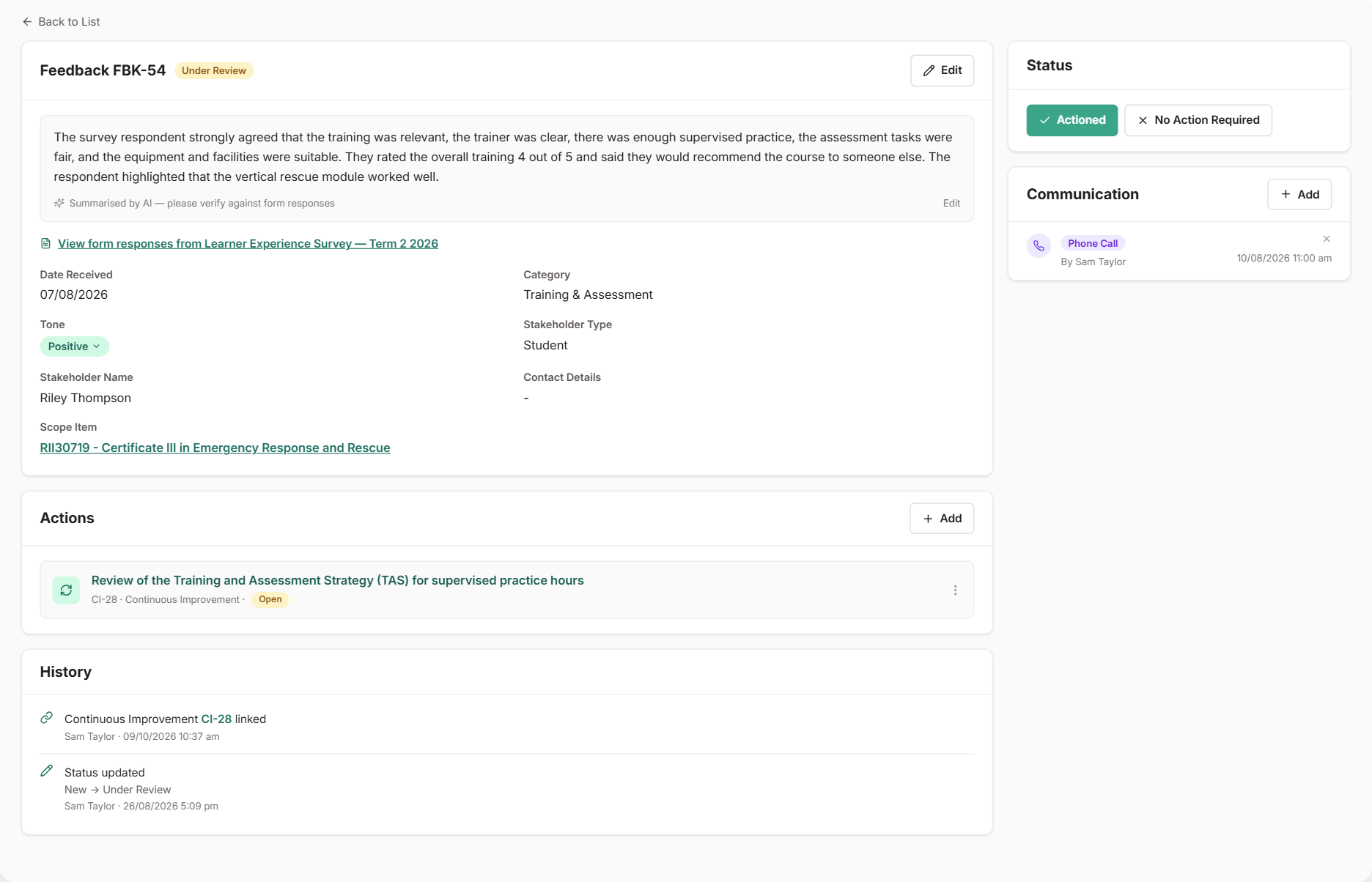
Steps
Start the review
Open the feedback and select Under Review in the Status card. This tells your team someone has picked it up.
Record your communication
Use Add in the Communication section to log emails, phone calls, meetings or internal notes, with attachments if you have them. This builds a timeline of how you responded.
Link any follow-up work
Use Add in the Actions section to create a linked Continuous Improvement, Task or Risk, or to Report Incident. For improvements, you can also search for and link one that already exists, so several pieces of feedback can point to the same fix.
Close it
Choose Actioned and describe what was done. If you linked any follow-up items, they’re filled in for you as a starting point. If nothing needed to happen, choose No Action Required and add a short reason.
A reason is optional for No Action Required, but it’s worth adding one. A single sentence shows the feedback was considered, not ignored.
Editing and Reopening
You can edit or delete feedback while it’s open. Once it’s closed, editing is locked so the record stays reliable. If more needs to happen, select Reopen for Review. This moves it back to Under Review, and you can edit it and add links again.
Every change is recorded in the History section: who created, edited, closed or reopened the feedback, and when.
Seeing the Bigger Picture
Individual records show what happened to one piece of feedback. To see patterns across all of it, use the Feedback Trends report.