
Meeting Register
The meeting register gives you one place to record your governance and management meetings: who attended, what was discussed, what was decided, and what happens next. Auditors often ask to see this evidence of how your RTO is governed.
Before You Start
The meeting register is off by default. A Compliance Admin can turn it on in RTO Settings → Meetings using the Meetings Feature toggle.
Once it’s on, Meetings appears in the main navigation for Compliance Admins. Other staff can’t open the register itself, but you can let them see their own meetings in the Staff Portal. See Meetings on the Staff Portal below.
If you use access profiles, meetings follow the profile’s Default Permission. Someone with Read only access can view meetings but can’t change them. Creating a task, risk or continuous improvement from a meeting also needs Read/Write access to that area.
Creating a Meeting
Go to Meetings and select New Meeting. Enter a title, date, time and category, then select Create Meeting.
Holding the same meeting regularly? Choose Start from template instead. See Meeting Templates.
Add your Attendees: staff members or stakeholders.
Add your agenda items. You can reorder them later with Move Up and Move Down.
Against each agenda item, record the Discussion Notes, any Decisions, and any follow-up actions or attachments.
When the meeting is finished, select Edit and change the status to Completed.
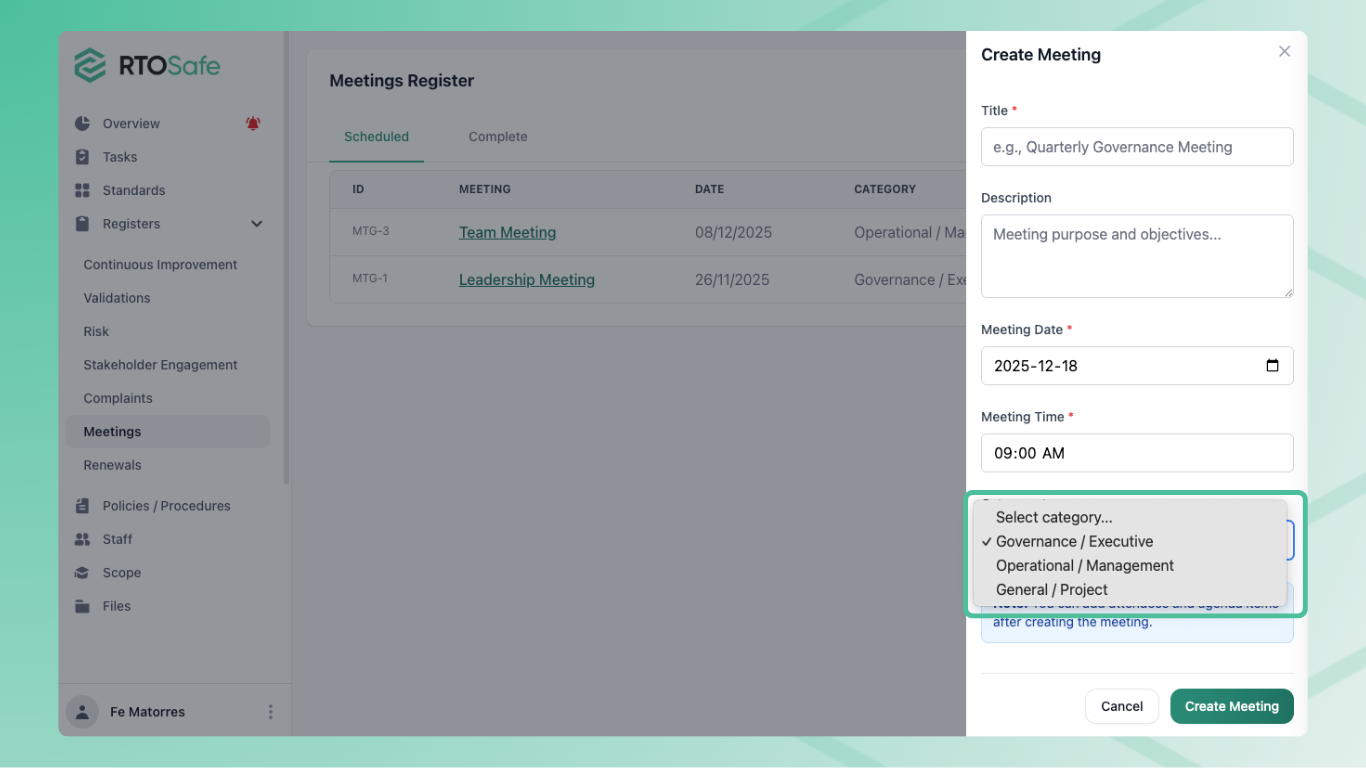
Choosing a Category
Categories keep your register organised and make it easy to pull out governance meetings during an audit.
| Category | Use for |
|---|---|
| Governance / Executive | Board meetings, executive reviews, strategic decisions |
| Operational / Management | Team meetings, departmental reviews, operational planning |
| General / Project | Project meetings, working groups, ad-hoc discussions |
| Performance Review | Performance and development conversations with a staff member |
Decisions and Actions
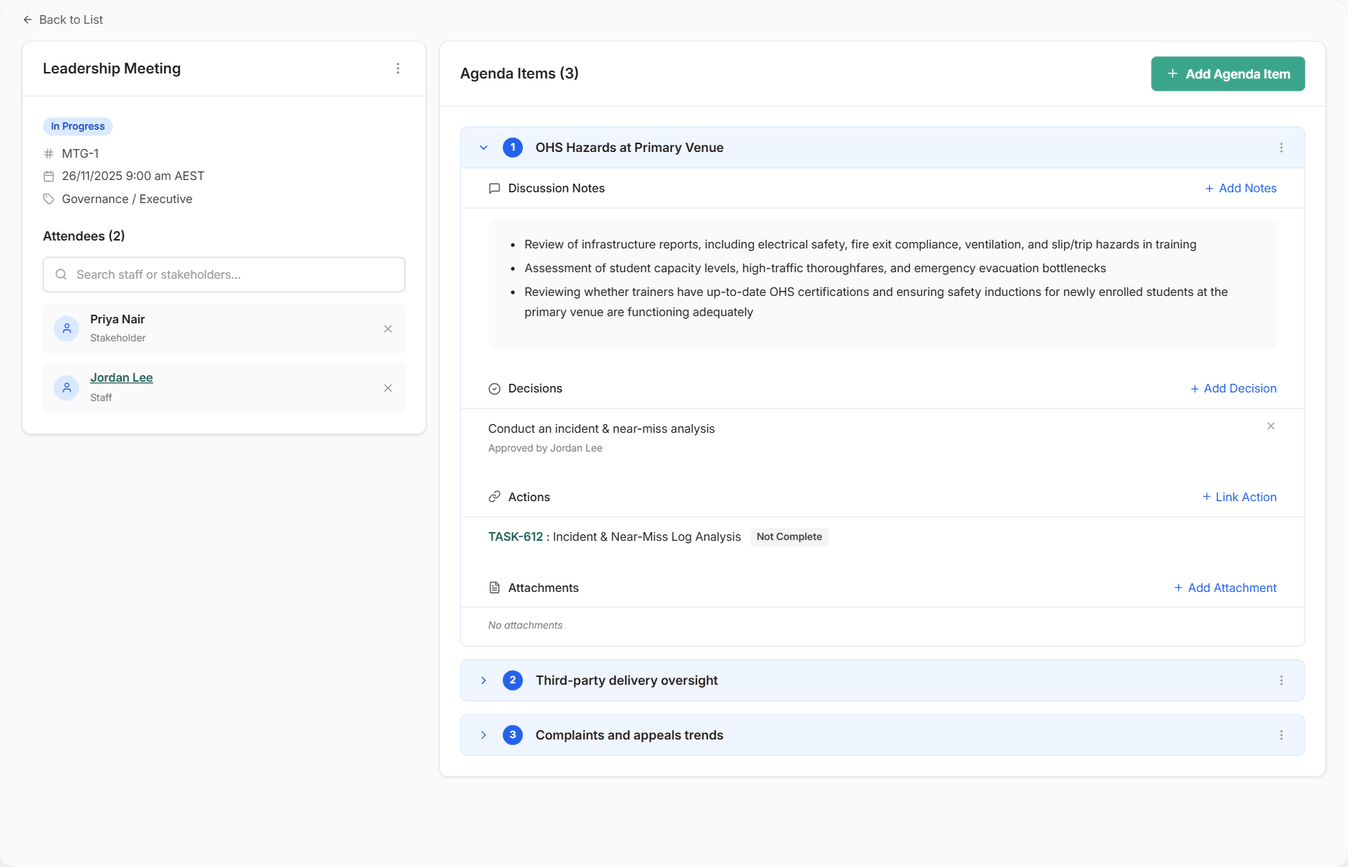
Decisions are your formal record of what was approved. Each decision needs an approver, and the approver must be a staff member listed as an attendee. That’s why it’s best to add attendees first. RTOSafe also records who entered the decision and when. Decisions can’t be edited, so if one’s wrong, delete it and add it again.
Link Action creates a new record that stays linked to the agenda item:
- Task: work someone needs to complete
- Risk: a risk raised in the discussion
- Continuous Improvement: an improvement arising from the meeting. The meeting also shows on the improvement record.
- Development goal (Performance Review meetings only): added straight to the staff member’s PD plan. See Create a PD Plan.
Use Add Attachment to upload meeting papers, reports or other evidence against an agenda item.
This is the link auditors look for: a decision made at a meeting, followed by a concrete action with an owner.
When a Meeting Is Completed
Completed meetings move to the Complete tab. Their agenda items, attendees, notes, decisions, actions and attachments can no longer be changed.
To share or file the minutes, open the meeting and choose Export to PDF. The PDF includes attendees, notes, decisions (with who approved and recorded them) and linked actions. It’s ready to hand to an auditor or your board.
If something needs correcting, you can set a completed meeting back to Planned or In Progress using Edit. Only do this for genuine corrections, and complete it again straight away.
Meetings on the Staff Portal
You can let staff see the meetings they attended in the Staff Portal, which is included on the Team and Organisation plans. Turn on Meetings in Settings → Staff Portal. The meeting register must also be on.
Staff then get a My Meetings page, split into upcoming and past meetings. They can see:
- The meeting details and description
- Who attended
- Each agenda item’s notes and decisions
Staff only see meetings where they’re listed as a staff attendee, and they can’t change anything. They don’t see actions, attachments, or who approved each decision.
Every staff attendee sees all the notes on the meeting. Keep this in mind for performance reviews and sensitive governance discussions.
Where Else Meetings Appear
- Calendar: upcoming and past meetings show on your compliance calendar. A meeting that’s still
Plannedafter its date is flagged as overdue. - Staff profiles: the Meetings tab on a staff member’s profile lists every meeting they attended.
Common Issues
No one appears in the Approved By list
Only staff attendees can approve decisions. Add the approver as an attendee first. Stakeholders can’t approve.
I can't add notes, decisions or actions
The meeting is Completed. Change the status back with Edit if a correction is genuinely needed.
A staff member can't see a meeting in the Staff Portal
Check they’re listed as an attendee, and that Meetings is turned on in Staff Portal settings.