
Design a Feedback Form
Feedback forms let students, employers and others give feedback online, through a link you share. Every response lands in your Feedback Register as its own record, already categorised and linked to the right training product. You review and close responses the same way as feedback you’ve recorded yourself.
When to Use This
Use a form when you want feedback from a group at once, such as end-of-course surveys, employer check-ins or feedback after an industry consultation. For a single comment someone made to you, add it to the register instead.
Steps
Create the form
Go to Feedback Forms and select New Form. Give it a name, and optionally an introduction and a thank-you message.
To collect feedback for a Stakeholder Engagement, start from the engagement’s Create Feedback Form button instead. The form is then linked to that engagement.
Decide who people have to say they are
Require Name and Require Email are both ticked by default. Untick them to make name and email optional, so people can choose not to give their details.
Choose how responses are classified
Set the Feedback Category for every response. For Stakeholder Type, leave Let submitter choose or pick a fixed type, such as Employer.
For Training Product, either pick one product (every response is about that product) or choose Ask the submitter to choose a qualification, skill set, course or unit. Linking a training product means responses show on that product’s Feedback page and in reporting.
Add your questions
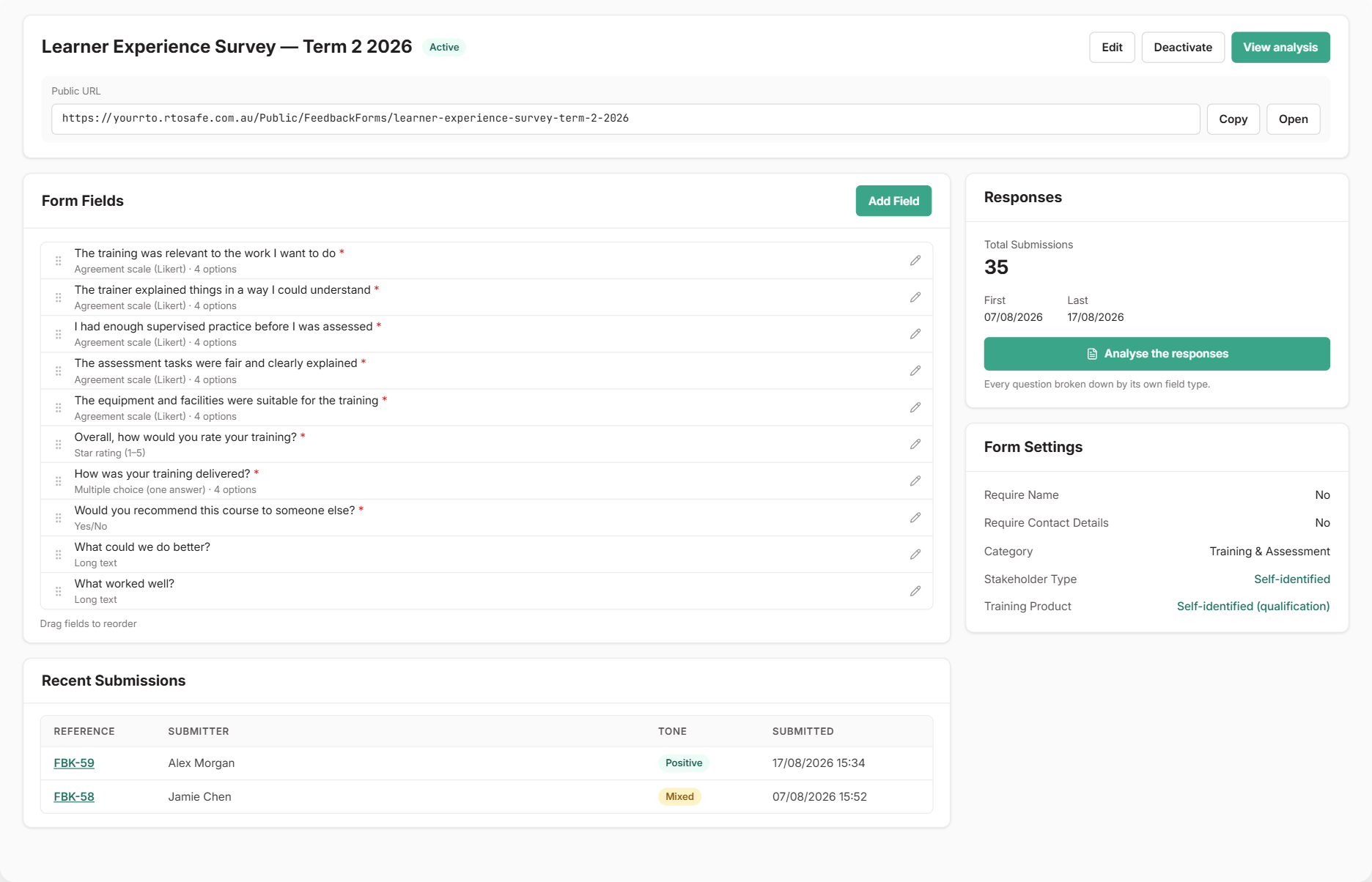
Select Create Form, then use Add Field on the next page. Drag fields to reorder them.
Activate the form
New forms start inactive. When your questions are ready, select Activate Form. Then share it.
Choosing Question Types
Most forms only need a few types:
- Star rating (1-5) for quick satisfaction scores
- Agreement scale (Likert) for statements like “My trainer explained things clearly”. It uses the same four-point scale as the Quality Indicator questionnaires (no neutral middle option), so you can compare results with your Quality Indicator data.
- Yes/No, Multiple Choice, Checkboxes and Dropdown for set answers
- Long Text for “What could we do better?”
Keep forms short. A few well-chosen questions get more responses than a long survey.
Changing a Form After Responses Arrive
You can keep improving a form while it’s in use. Adding fields, changing answer options and reordering are all fine.
If you change a question’s wording or type after people have answered it, RTOSafe keeps the original for the answers already given and starts a new version. Your reports still treat them as the same question.
To remove a question, deactivate the form first. A form can’t be deleted once it has responses; deactivate it instead.